Accounts in Another Currency
Keep an account in its own currency and see what it counts as in your budget
Your Budget’s Currency
Each budget counts in one currency: Canadian dollars in Canada, US dollars in the US. Budgets, reports and Safe to Spend all use it.
Accounts You Add by Hand
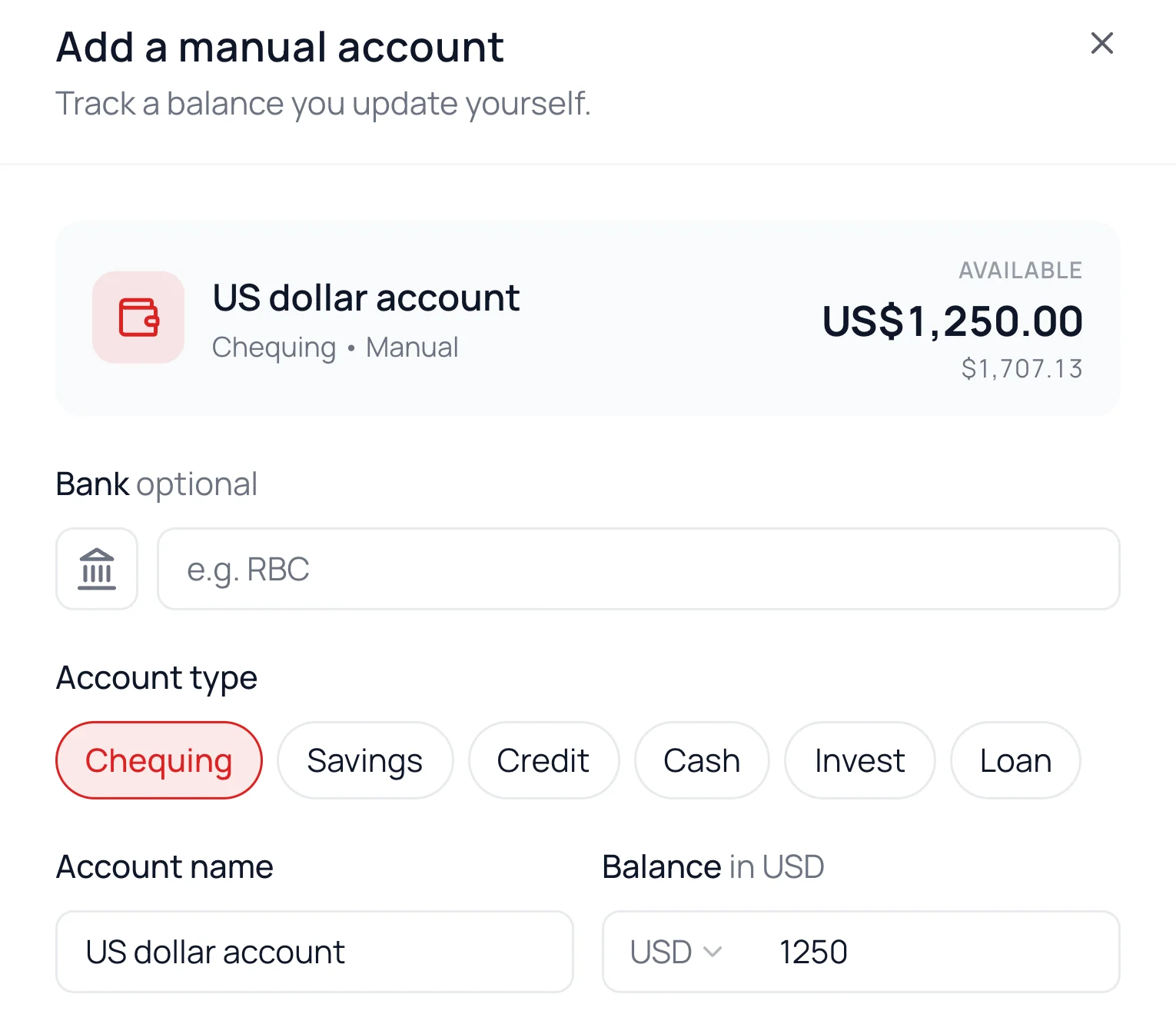
When you add the account, pick its currency at the start of the Balance field (Amount Owed on a card or loan). Every currency with a daily Bank of Canada rate is there.
The currency is set once the account is added. To use another one, add a new account. See Add an Account by Hand.
Connected Accounts
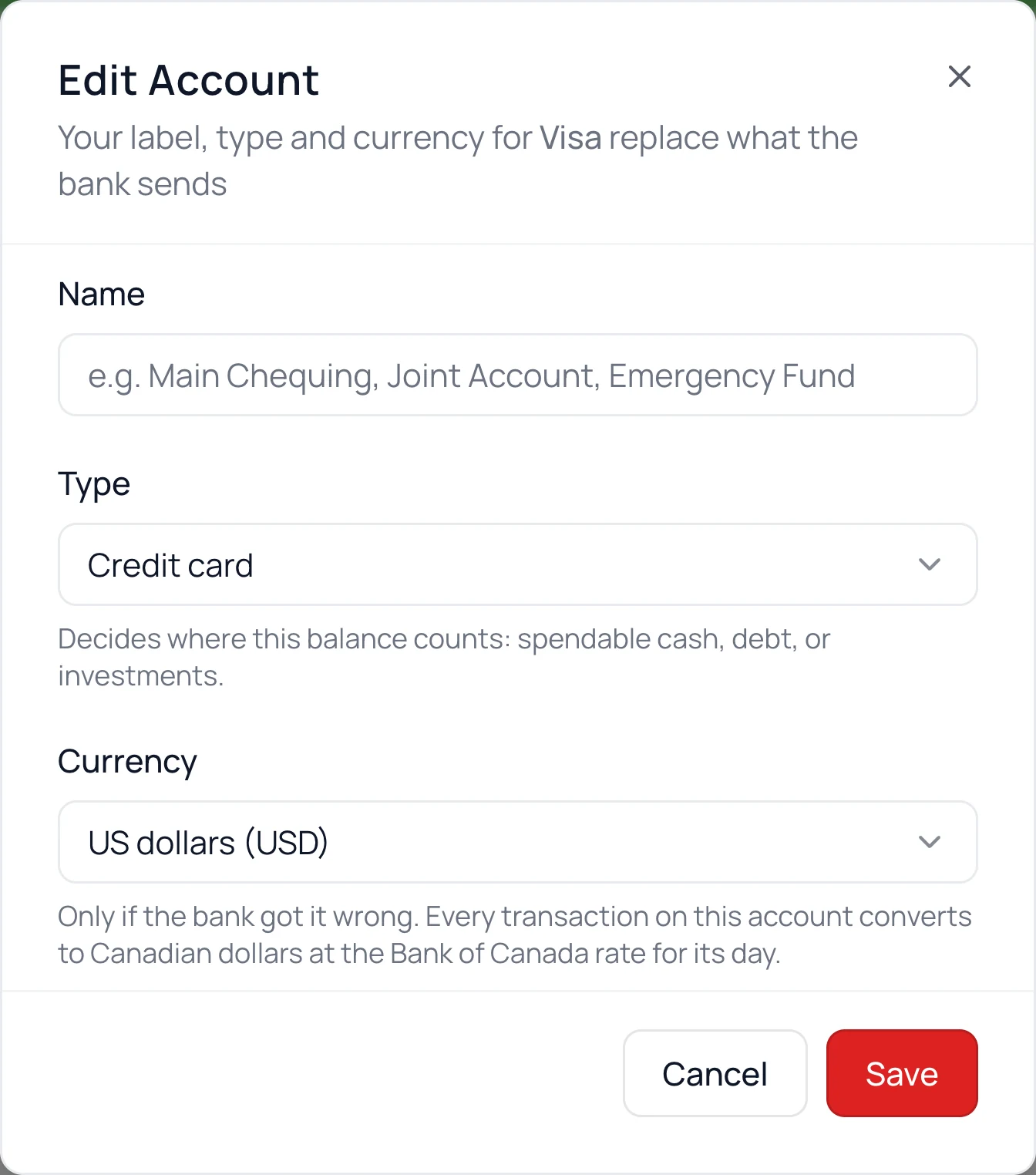
A connected account takes its currency from your bank, so there’s nothing to set. If the bank labels it wrong, pick the right one:
- 1.
On the Banks page, click the account, then ⋯ and Edit Account.
- 2.
Pick the right currency under Currency, then click Save.
Its transactions, past ones included, then count in that currency, and every sync keeps it. Choose Use the bank’s currency to undo it.
How It Converts
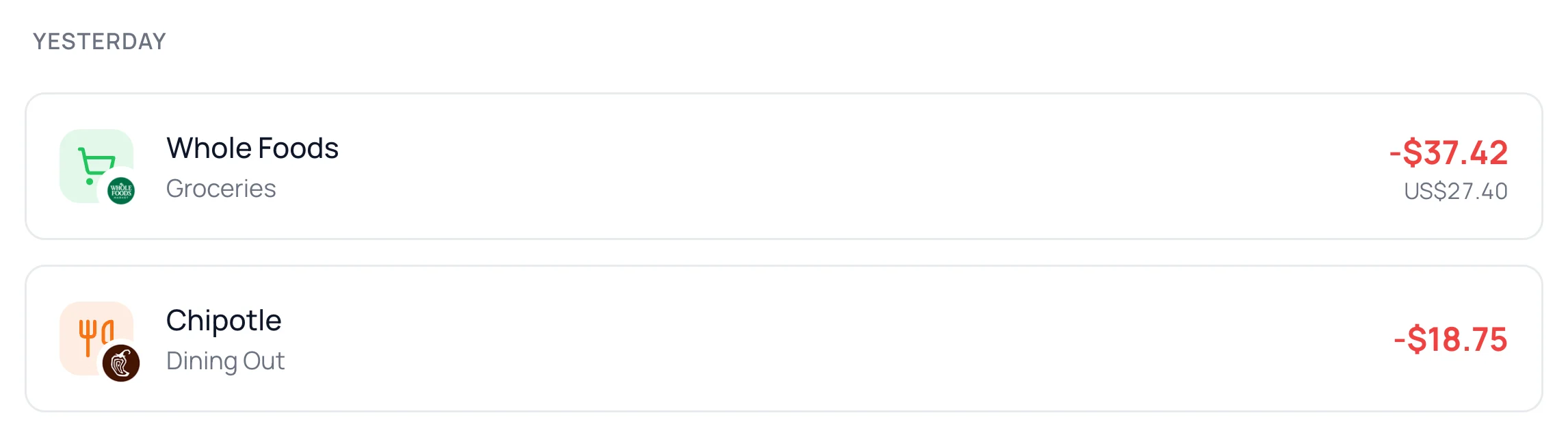
Each transaction converts at the Bank of Canada rate for its date. Weekends and holidays use the last business day’s rate.
Your budget counts the converted amount, and your bank’s own amount stays under it. Balances on the Banks page and Net Worth convert at today’s rate.
Common Questions
Banks convert at their own rate, which includes a markup. Know the exact figure in your budget’s currency? Open the transaction, click Enter the amount from your statement, type it and click Update. It then stays. A paired exchange already counts what left your other account, so the link isn’t there.
A purchase from today first uses the last published rate. Late in the day, the Bank of Canada publishes that day’s rate and the amount updates to it.
When both accounts are connected, the two sides of an exchange usually pair into one transfer, which stays out of your budget. If they don’t, set both sides to Transfer.
Not yet. If you need to, message us from Help & Support.
Read Next
Still stuck? Use the ? at the top of the app to ask the Waypoint Guide, or message us. A person from our team will get back to you.