Rollover Categories
Let unspent money carry into next month, for things like a trip or car repairs
When to Use One
Every category does one of two things when the month ends.
Starts fresh
Goes back to its full amount on the 1st. Whatever you didn’t spend doesn’t carry.
Good for groceries, dining out, gas
Rolls over
Whatever you don’t spend stays, and the balance builds month after month.
Good for a trip, Christmas, car repairs
Turn It On
- 1.
Go to Budget and click the category in your Categories list.
- 2.
Click Advanced options.
- 3.
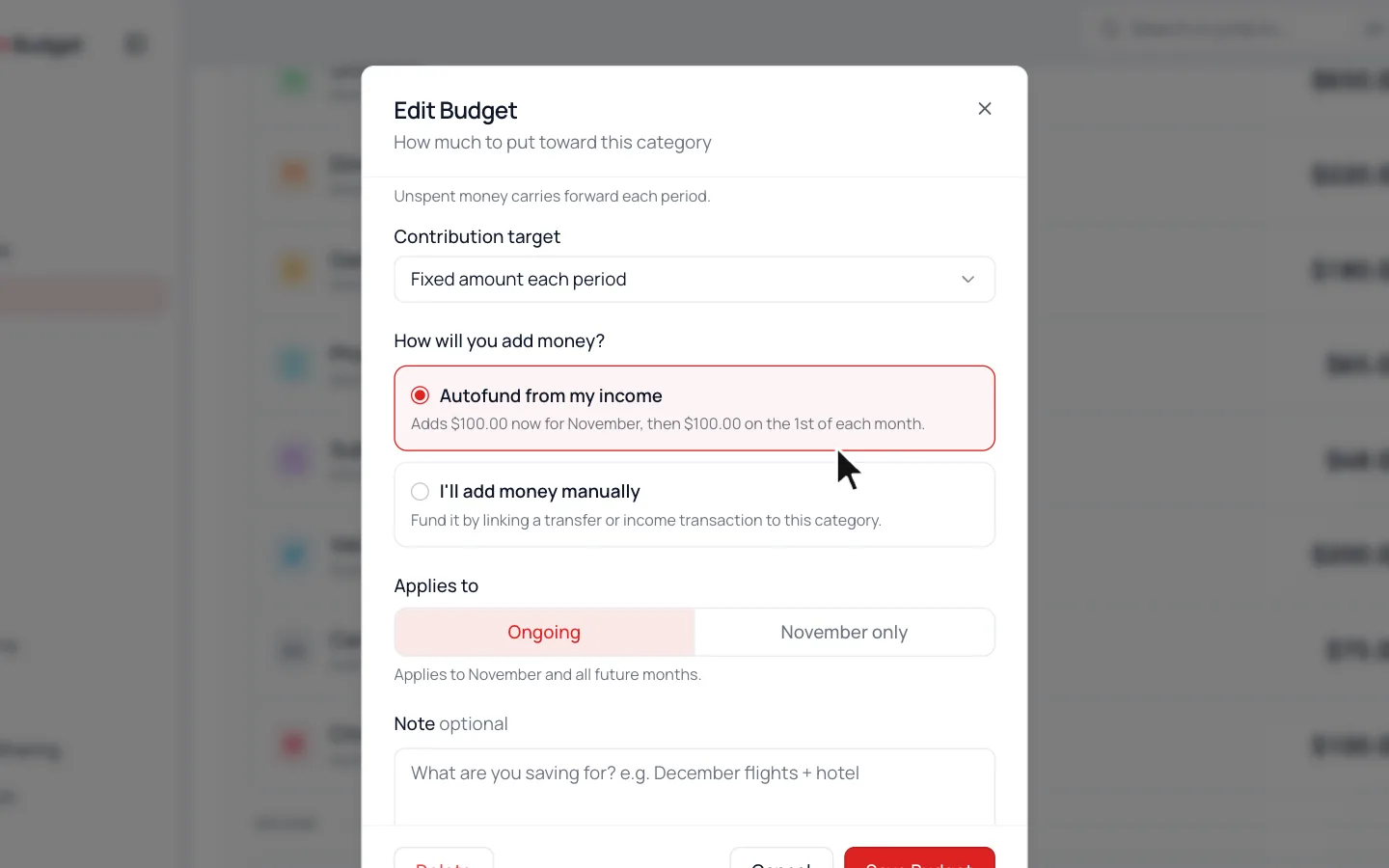
Under When the period ends, unspent money…, pick Rolls over.
- 4.
Choose how the fund gets money. Autofund from my income adds the amount on its deposit day, the 1st unless you pick another, and usually adds this month’s right away. With I’ll add money manually, you fund it yourself: put a transfer or income in the category, or use Adjust Balance.
- 5.
Click Save Budget.
The category now shows Rolls over and its balance. The Rolls over chip above the list shows every fund in one place.
On Your Dashboard
Money you set aside in a fund isn’t spending, so it stays out of Spent. It comes out of Remaining instead, and the tile shows how much you set aside this month. When you spend from the fund later, Remaining doesn’t drop a second time.
Change a Balance
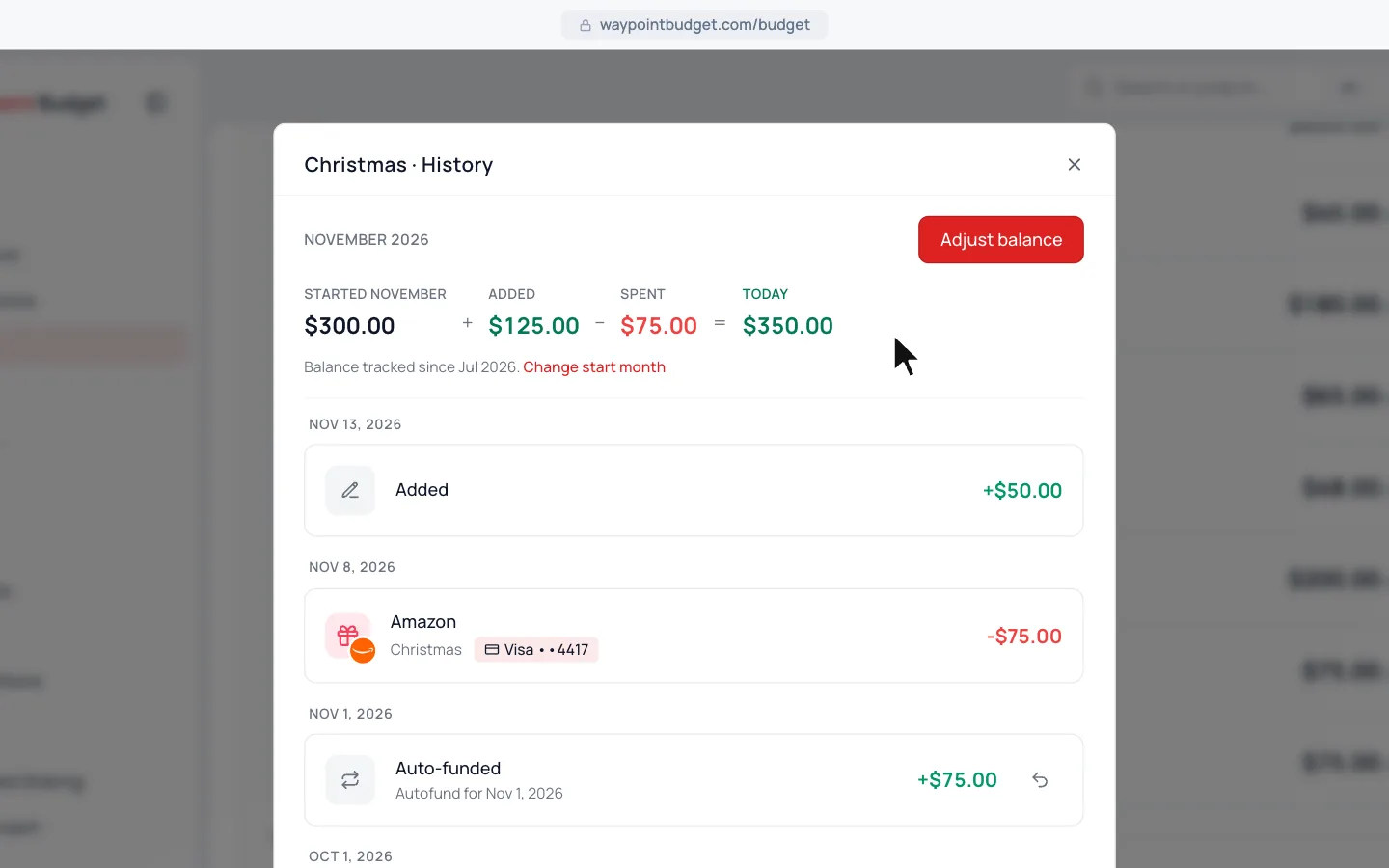
Click a rollover category’s balance to see what went in and out. Then click Adjust Balance, choose Add or Withdraw, and save.
Common Questions
Only when its balance drops below zero. Spending money you saved in earlier months is the point of the fund, so it stays On Track while there’s money in it.
Yes. Click the balance, then Change start month, and pick when the fund should have started.
The balance stops carrying forward and contributions stop. Your history is kept, and the balance comes back if you switch back to Rolls over.
Read Next
Still stuck? Use the ? at the top of the app to ask the Waypoint Guide, or message us. A person from our team will get back to you.