Switch from YNAB, Monarch or Quicken
Bring your categories, transactions and budgets with you when you set up
Coming from another app? Bring your history with you, so your past months and trends are there from day one.
Import While You Set Up
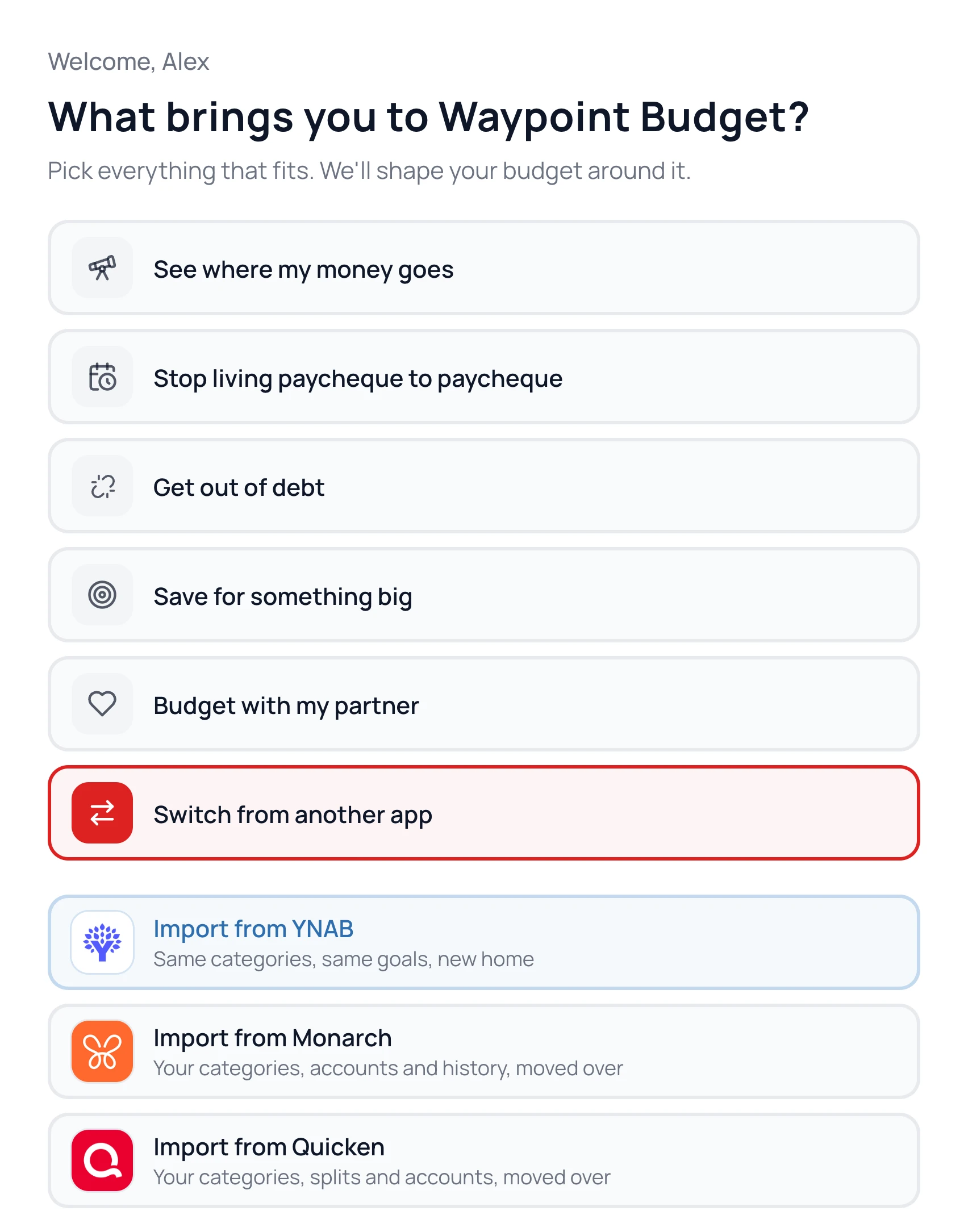
- 1.
On the first setup question, choose Switch from another app.
- 2.
Pick Import from YNAB, Import from Monarch or Import from Quicken.
- 3.
Upload the file you exported from that app.
- 4.
On the review screen, check Monthly Income, then click Import Budget.
From YNAB

In YNAB on a computer, select your plan’s name, then Export Plan. Upload the whole ZIP. Your categories, groups, transactions and budgets come over. YNAB’s export leaves out goals, so add those here.
From Monarch

Upload Monarch’s transactions CSV. Your categories, accounts and transactions come over. Add its balances CSV when asked, and your balance history comes too.
From Quicken on a Mac

In Quicken, open All Transactions, then choose File, Export, Register Transactions to CSV File. Upload that file. Budgets are suggested from your last 12 months. Quicken for Windows isn’t supported yet.
Already Set Up?
The importer runs during setup only. Message us from Help & Support and we’ll help you bring your history in.
Common Questions
No. When you connect a bank, transactions that match what you imported are linked, not added twice.
Mint CSV exports work in the regular import. See Add Your Transactions.
Still stuck? Use the ? at the top of the app to ask the Waypoint Guide, or message us. A person from our team will get back to you.