Tag Your Transactions
Label transactions for a trip, a project or tax time, then pull them up together
Want to see what a trip cost, across Travel, Gas and Dining Out? Tag those transactions, then pull them up in one list.
Tag a Transaction
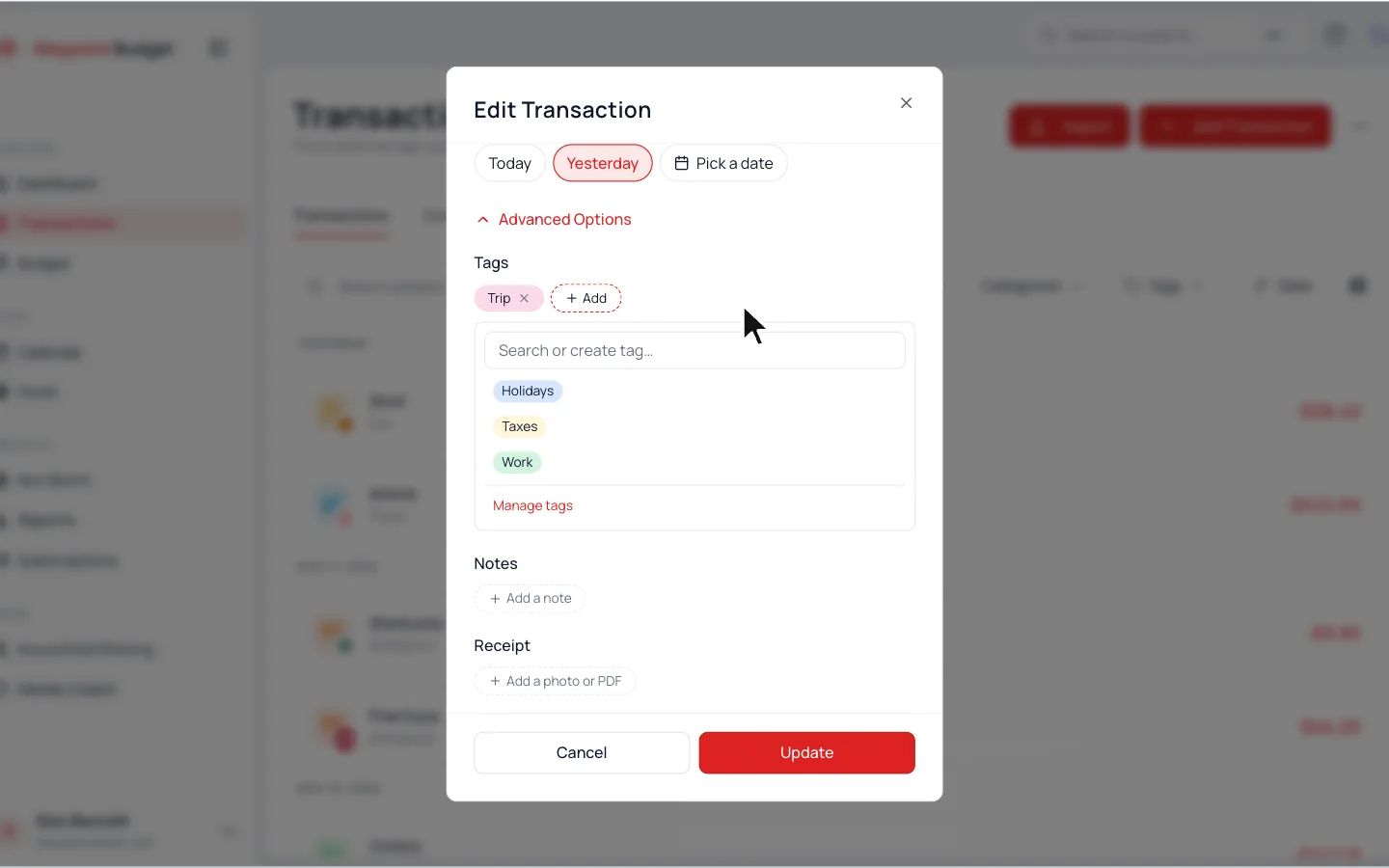
- 1.
On Transactions (Activity on a phone), click the transaction.
- 2.
Open Advanced Options, then click Add under Tags.
- 3.
Pick a tag, or type a new name and choose Create.
- 4.
Click Update.
A transaction can have several tags, and new ones get a color on their own.
Find Tagged Transactions
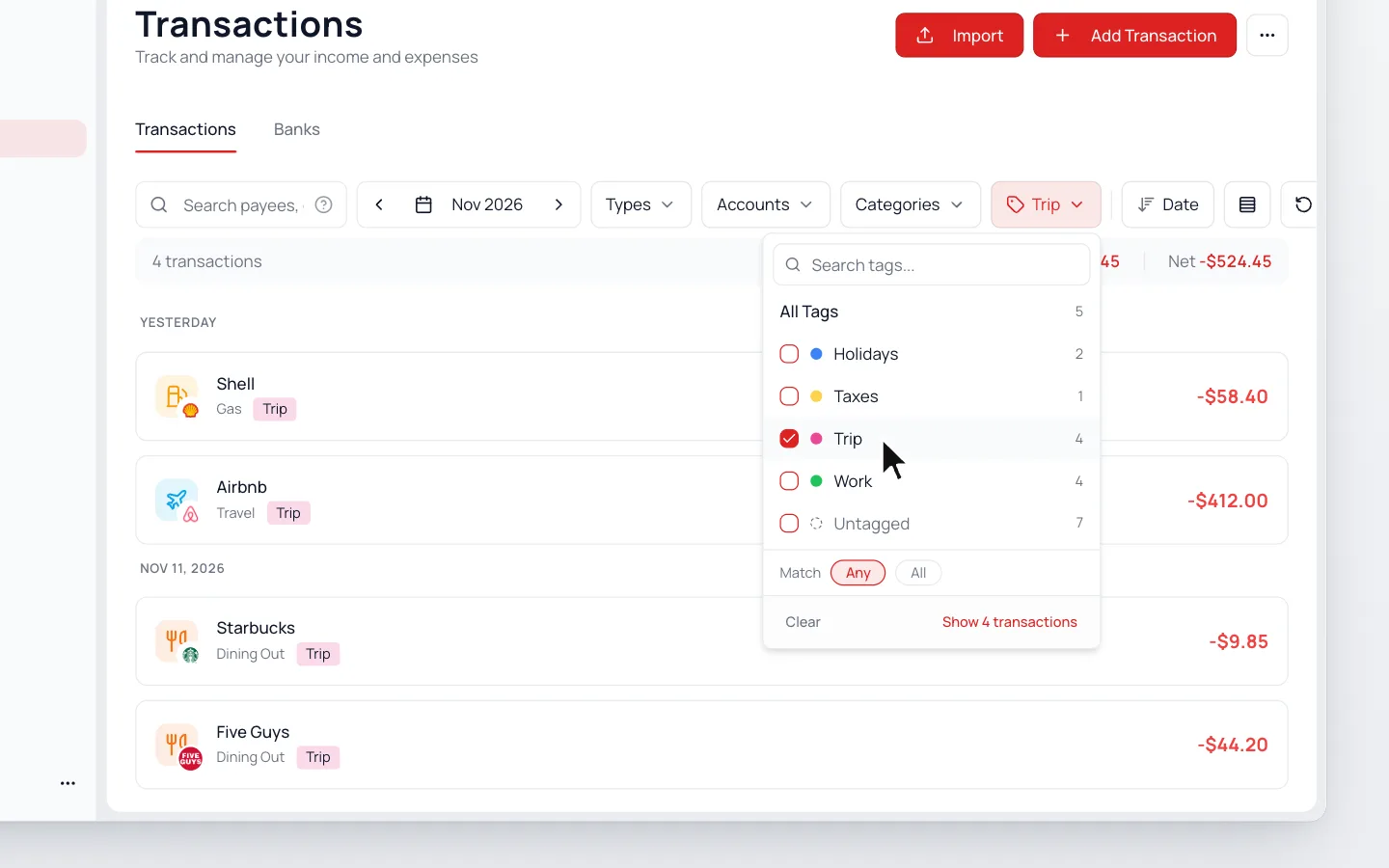
- 1.
On Transactions, click Tags next to Categories. In a narrower window, it’s under Filters.
- 2.
Tick the tags you want. The list updates as you go.
You can also type “trip tag” in the search box.
Rename, Recolor or Delete a Tag
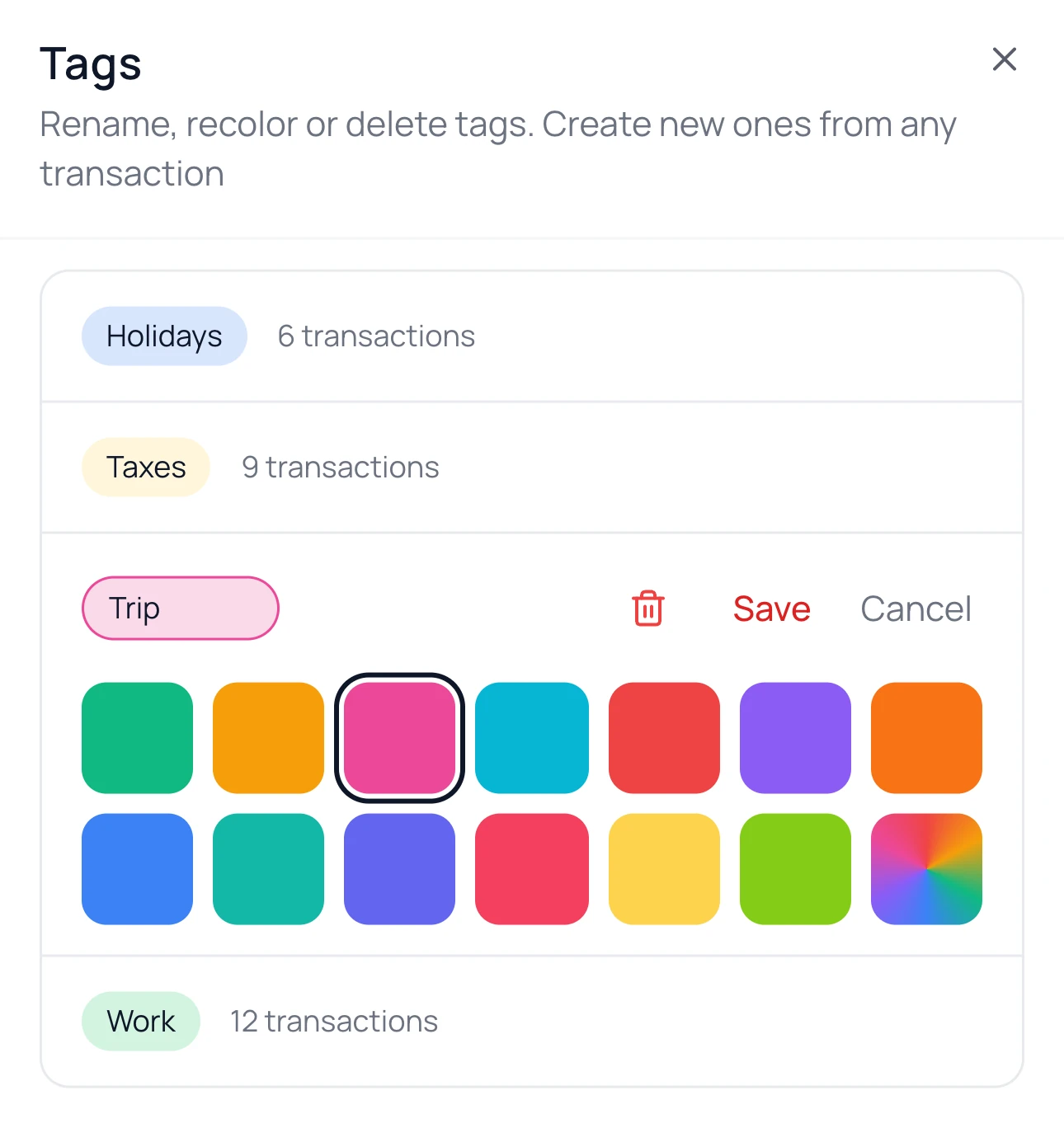
- 1.
In Settings, scroll to Transactions and open Tags.
- 2.
Click a tag, then change its name or pick a color.
- 3.
Click Save.
To delete a tag, open it, click the trash can, then Delete. Its transactions stay, without the label.
Common Questions
No. Categories decide where spending counts. Tags are extra labels you can search and filter by.
Yes. Choose Bulk Edit from the ⋯ menu, select the rows, then choose Tags (under More on a phone).
It shows once the dates you’re viewing include a tagged transaction.
Read Next
Still stuck? Use the ? at the top of the app to ask the Waypoint Guide, or message us. A person from our team will get back to you.