Make the Budget Yours
Rename, add or remove categories, and set budgets that match your real spending
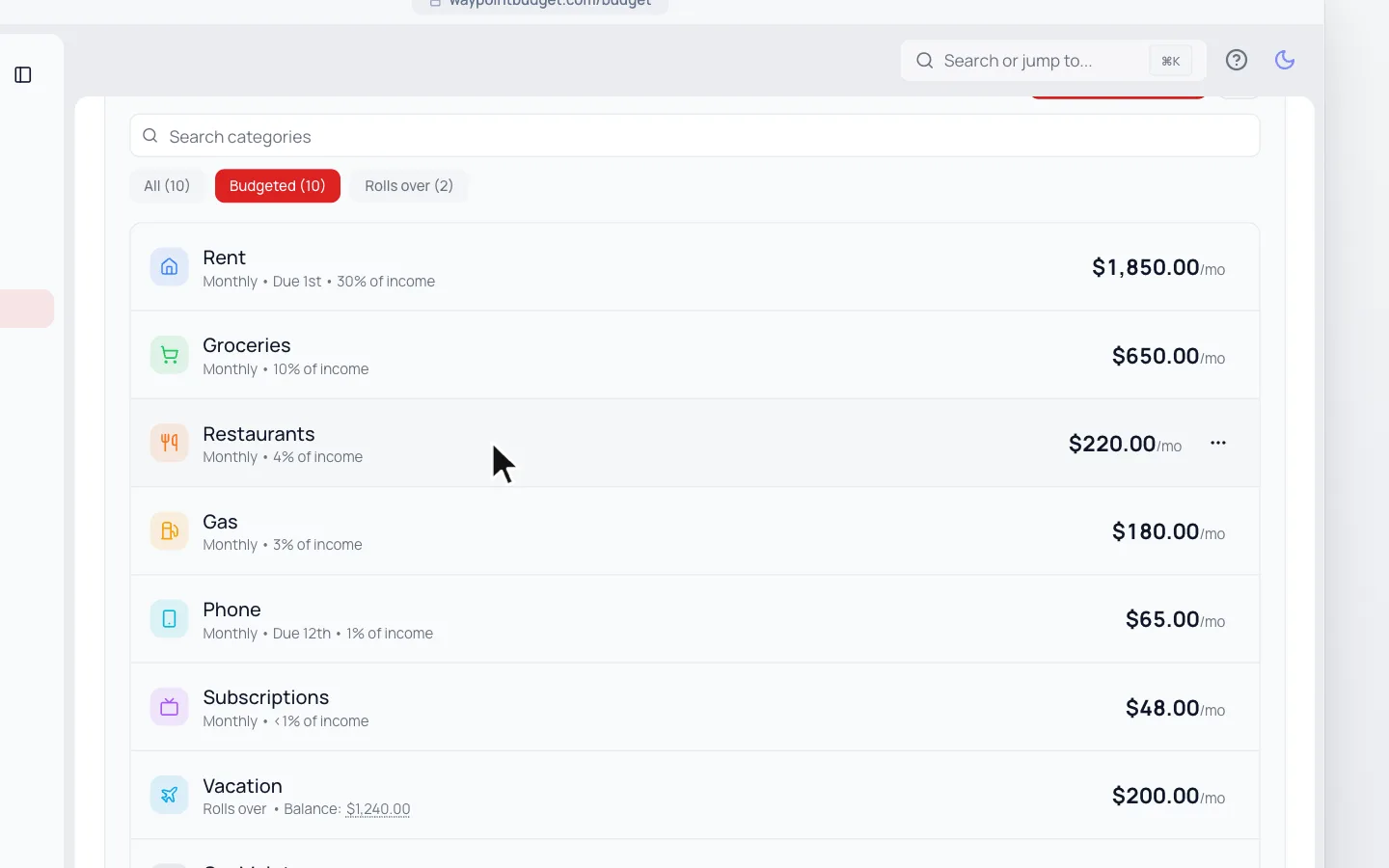
Click Make the Budget Yours in your Dashboard’s setup checklist, or go to Budget and scroll to Categories. Click All to see categories with no budget yet.
Rename, Archive or Delete
- 1.
Point at the category and click ⋯ at the end of its row.
- 2.
Click Edit Category.
- 3.
Type the new name.
- 4.
Click Update Category.
The same ⋯ menu has Archive Category and Delete Category. Archiving keeps past transactions and reports but removes its budget, and you can restore it later. Deleting moves its transactions to a category you pick.
Need a new category, or want to group them? See Add a Category and Group Your Categories.
Set a Budget from Past Spending
- 1.
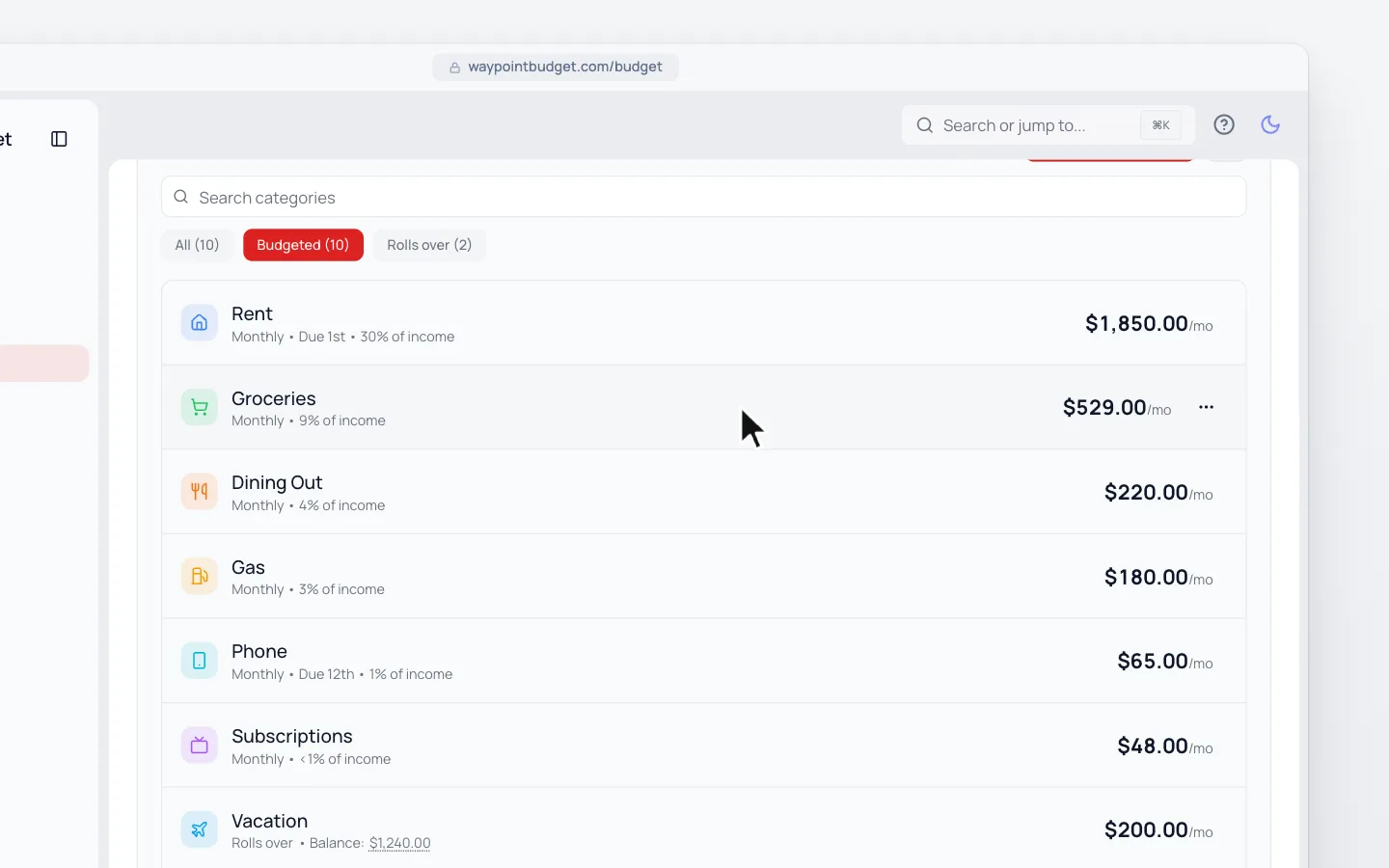
Click the category in your Categories list.
- 2.
Click Category history.
- 3.
Click Average, Last month or Highest month to use that amount.
- 4.
Click Save Budget.
No Category History?
Category history shows once the category has spending in two recent months. Categories on a longer schedule, like yearly, don’t have it.
Yearly and Quarterly Expenses
- 1.
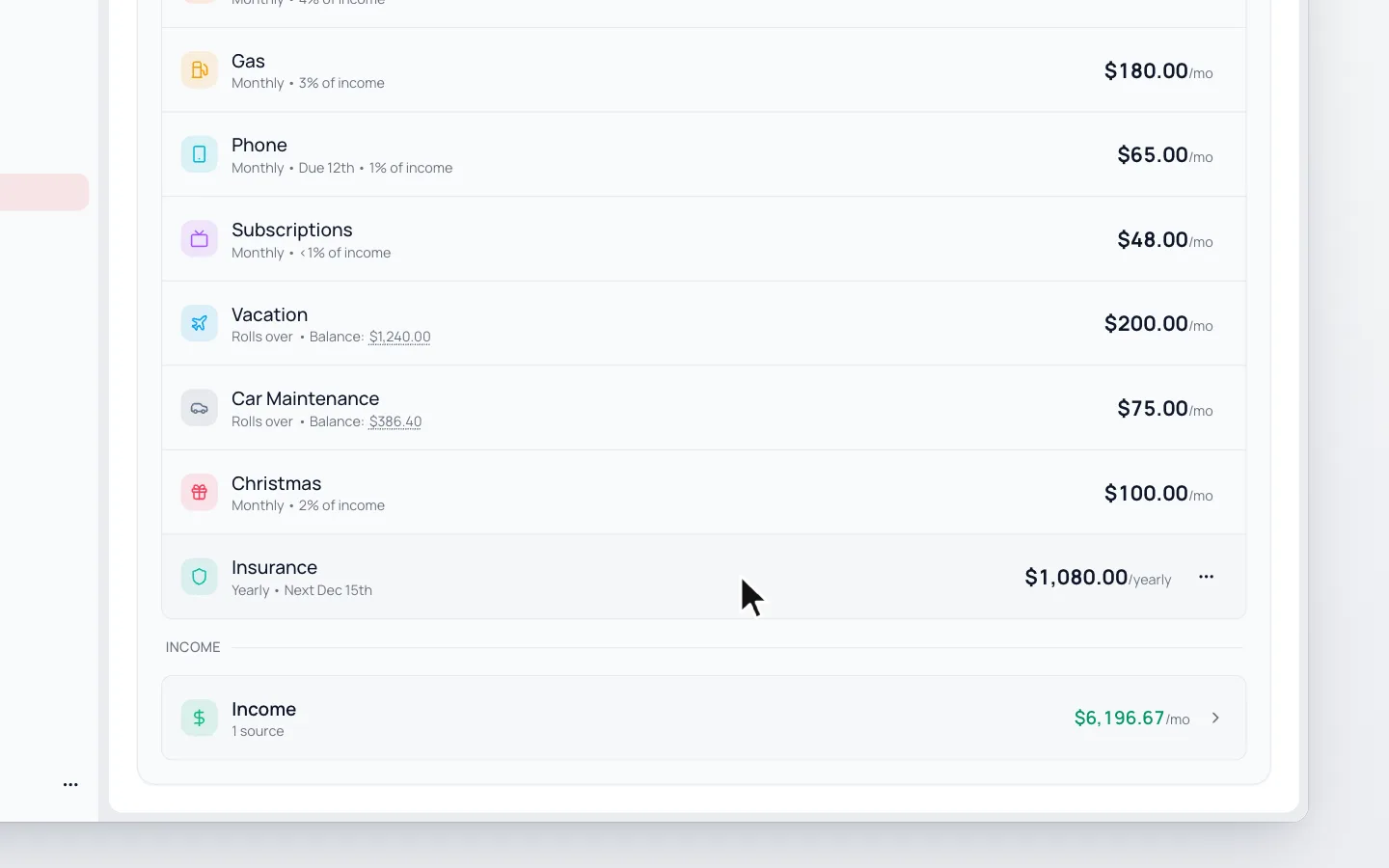
Click the category in your Categories list.
- 2.
Change How often? to Yearly or Quarterly (Every 3 months).
- 3.
Type the full amount, not a monthly share.
- 4.
Set Next Payment Date.
- 5.
Click Save Budget.
The full amount counts in the month it’s due.
To save toward it monthly instead, switch it to Rolls over. See Rollover Categories.
Next Step
Still stuck? Use the ? at the top of the app to ask the Waypoint Guide, or message us. A person from our team will get back to you.