Credit Card Payments and Transfers
Keep card payments and moves between your accounts from counting as spending
Paying your credit card isn’t new spending. Each purchase already counted when you made it, so the payment is a Transfer between your own accounts.
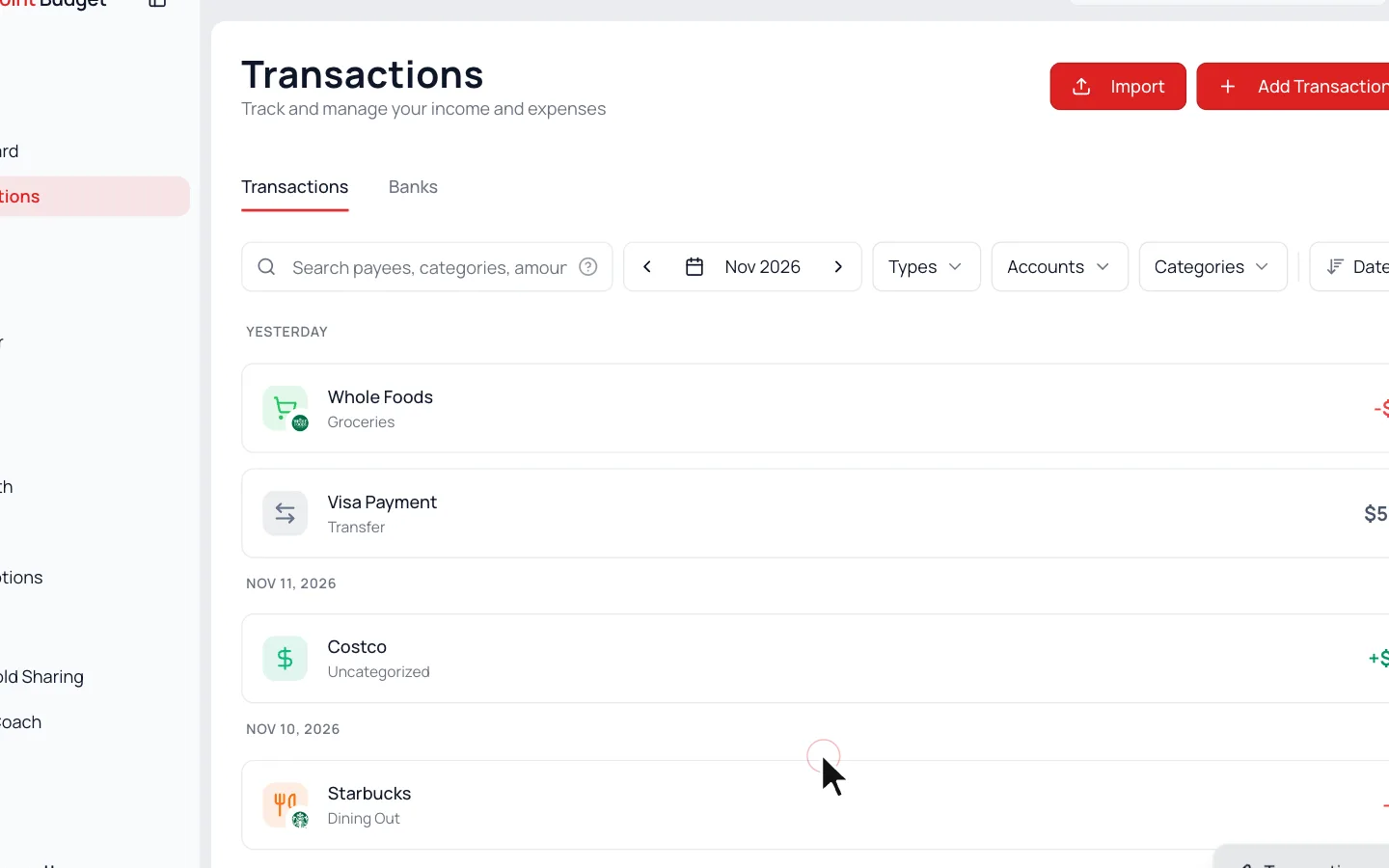
Mark It as a Transfer
- 1.
Click the payment to open Edit Transaction.
- 2.
Pick Transfer under Type.
- 3.
Click Update.
Transfers stay out of your budget. When both accounts are connected, the two sides pair up into one transfer on their own.
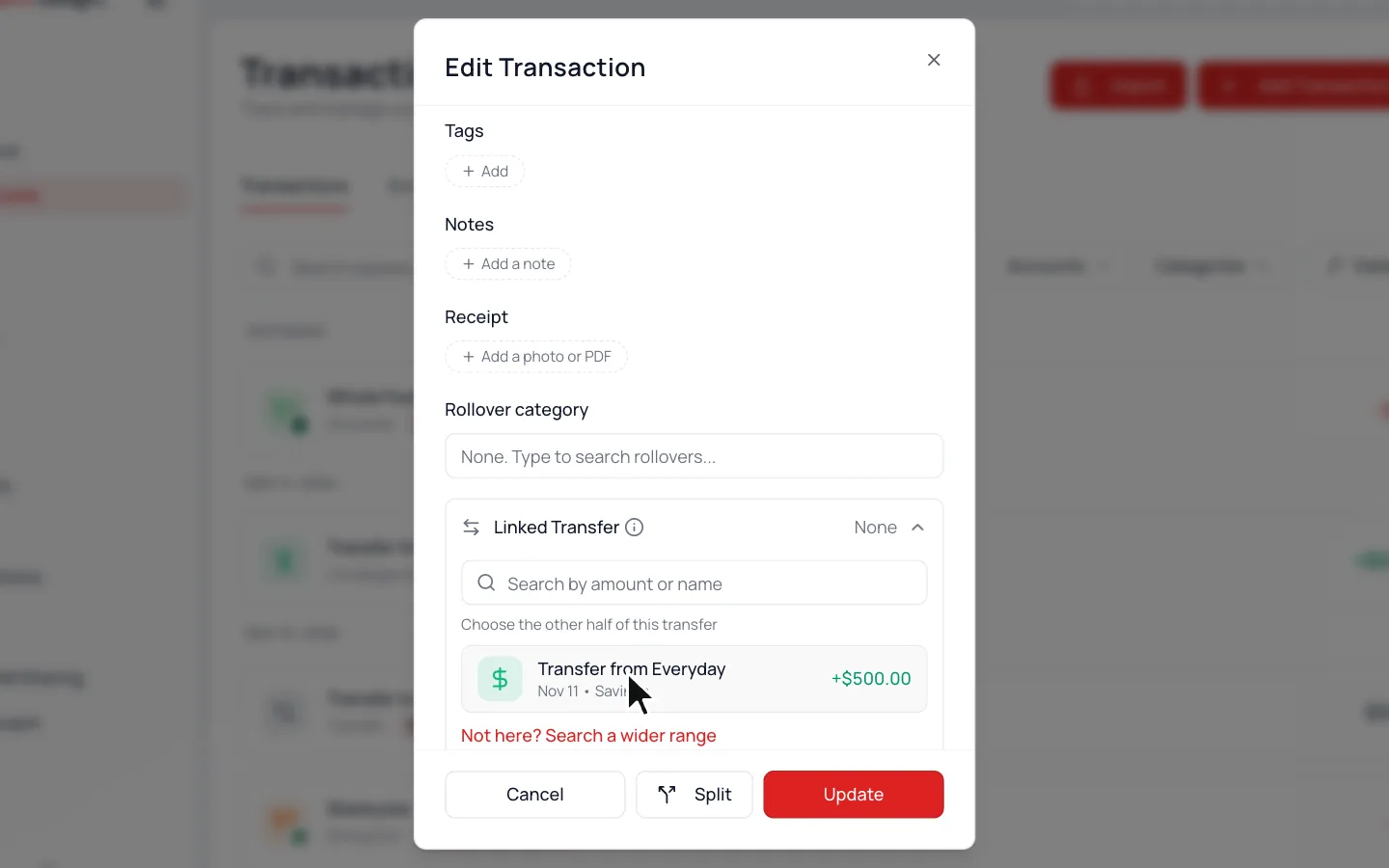
Didn’t Pair?
Open the side you set to Transfer, then Advanced Options, and pick the other side under Linked Transfer.
A Card You Track by Hand
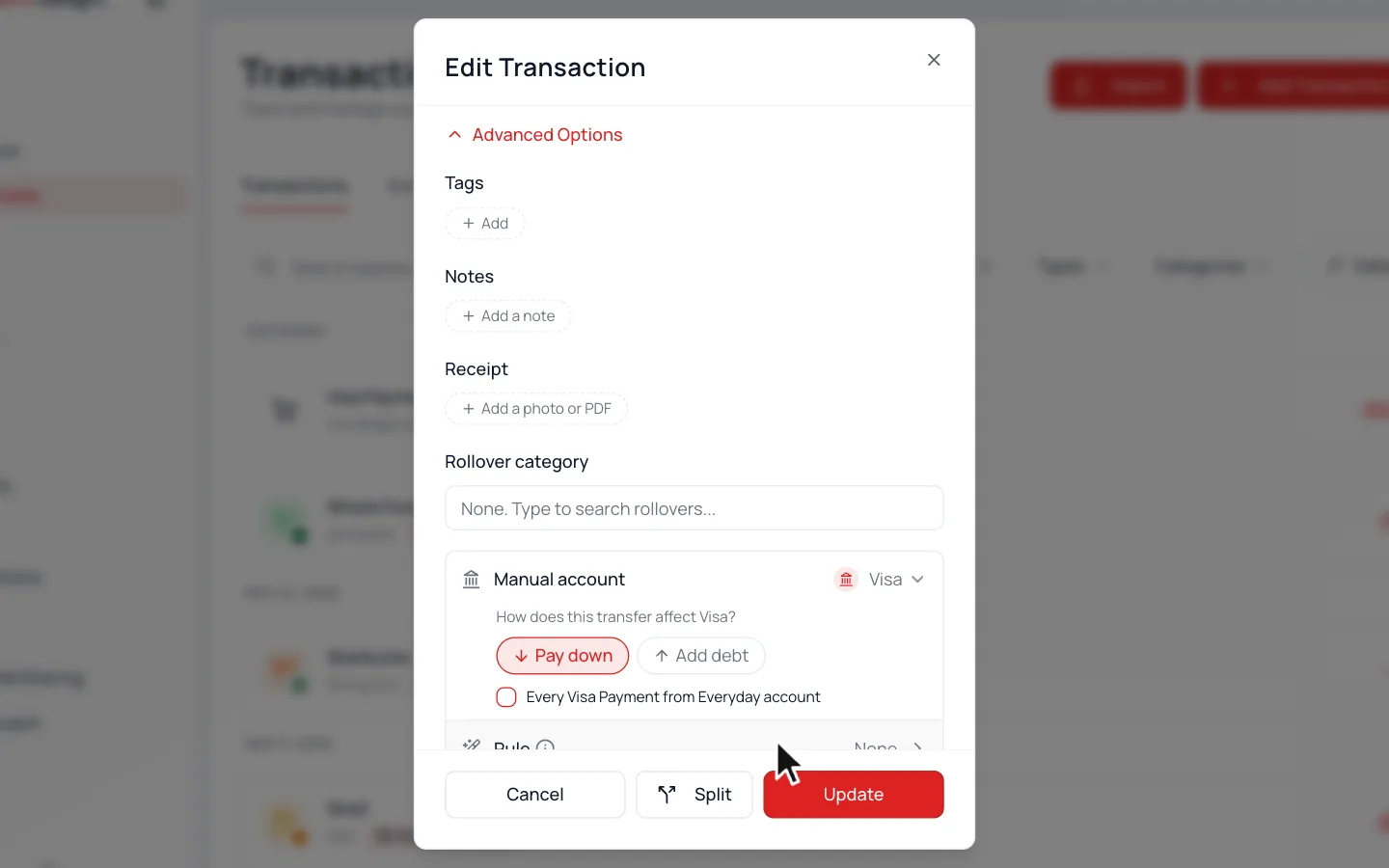
Did the payment come in from a connected account? Open it and set it to Transfer. Under Advanced Options, pick the card beside Manual account, then click Update. Otherwise, add the payment as a Transfer on the card and keep Pay down selected.
Common Questions
That’s expected if your savings isn’t connected. Moving money in from outside the app works like income. If both accounts are connected, set both sides to Transfer.
No. Purchases stay Expense, so they count in their categories. Only the payment to the card is a transfer.
Still stuck? Use the ? at the top of the app to ask the Waypoint Guide, or message us. A person from our team will get back to you.