Category Breakdown
Each category’s spending against its budget this month, and how to see what went over
Which categories are on budget this month, and which went over? Category Breakdown shows each one’s spending against its budget. It’s on your Dashboard from the start.
What Each Row Shows
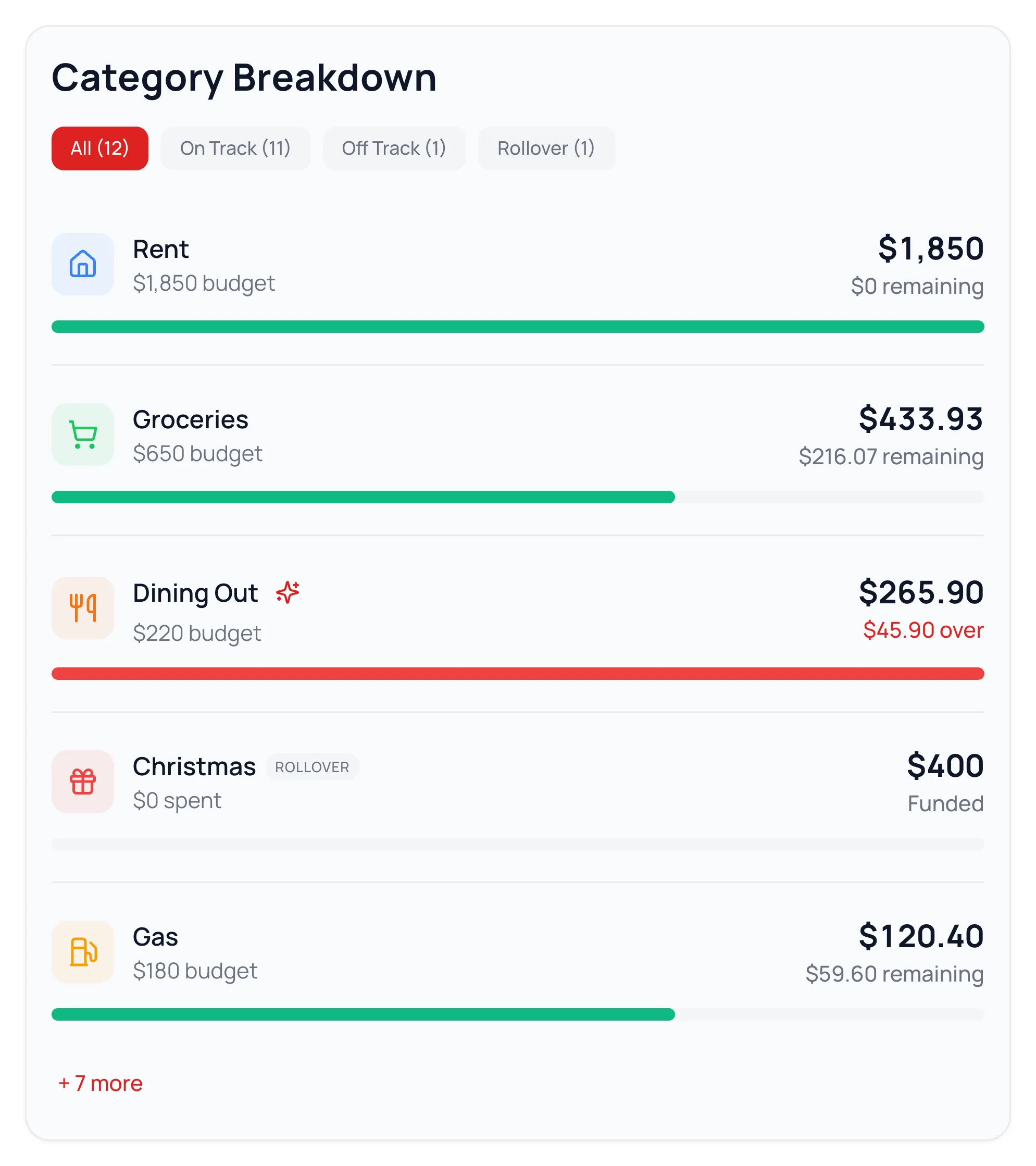
- The big number is what you’ve spent this month. The category’s budget sits under its name.
- Under the big number is what’s left. Once a category is off track, it shows how far over you went, in red.
- The bar fills as you spend: green while you’re on track, red once you’re off track.
- A rollover category shows its balance instead. Under its name is what you spent from it this month.
- A group adds up the categories in it. Click the group to open it.
On Track and Off Track
A category goes Off Track once you spend $5 more than its budget, or 2% more on budgets over $250. A few cents over on rent doesn’t count. A rollover category only goes Off Track if its balance drops below zero.
The chips at the top filter the list: All, On Track, Off Track and Rollover. Off Track appears when something’s over, and Rollover when you have rollover categories. Click Rollover to see how much you’ve set aside across them.
See What Went Over
- 1.
Click Off Track at the top of the card.
- 2.
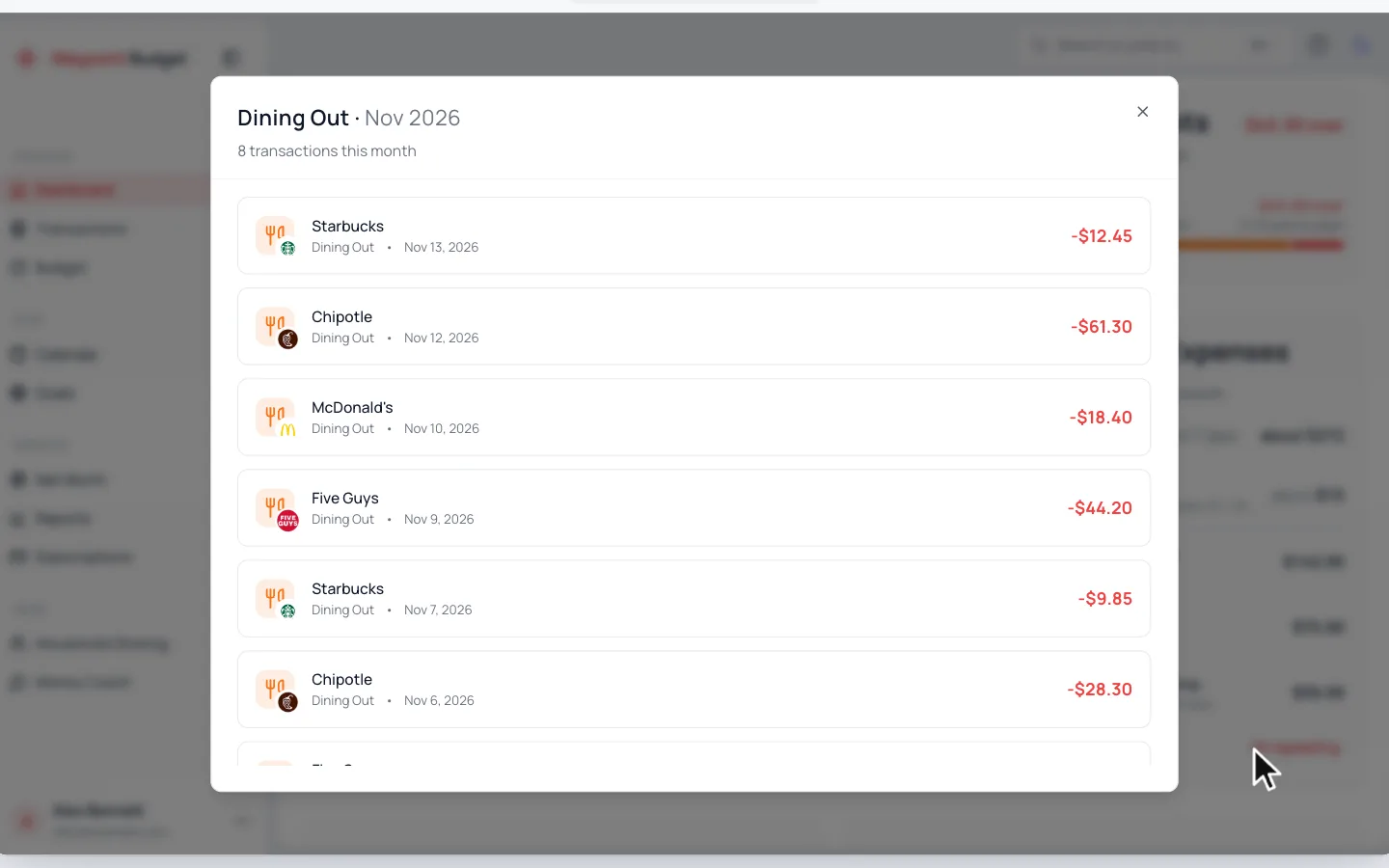
Click a category to see its transactions this month, newest first.
- 3.
Click a transaction to change it, like moving it to the right category.
A rollover category opens its balance history instead. See Rollover Categories.
Common Questions
Remaining is your income minus everything you’ve spent and set aside, even spending with no budget. Off Track looks at one category at a time, so the two can disagree.
Only categories with a budget this month are listed. Spending with no budget shows in Unbudgeted Spending. A yearly or quarterly expense shows up in the month it’s due.
It appears when a category is well over its budget. Click it for a Money Coach tip about that category.
Yes, with Customize on your Dashboard. See Customize Your Dashboard.
Read Next
Still stuck? Use the ? at the top of the app to ask the Waypoint Guide, or message us. A person from our team will get back to you.