Add Widgets to Your Phone
Keep Safe to Spend, your goals and more on your Home Screen and Lock Screen
Want your numbers without opening the app? Put a Waypoint Budget widget on your phone.
On an iPhone
- 1.
Touch and hold an empty spot on your Home Screen until the apps jiggle.
- 2.
Choose Edit, then Add Widget.
- 3.
Search for Waypoint Budget and pick a widget.
- 4.
Swipe to the size you want, then choose Add Widget.
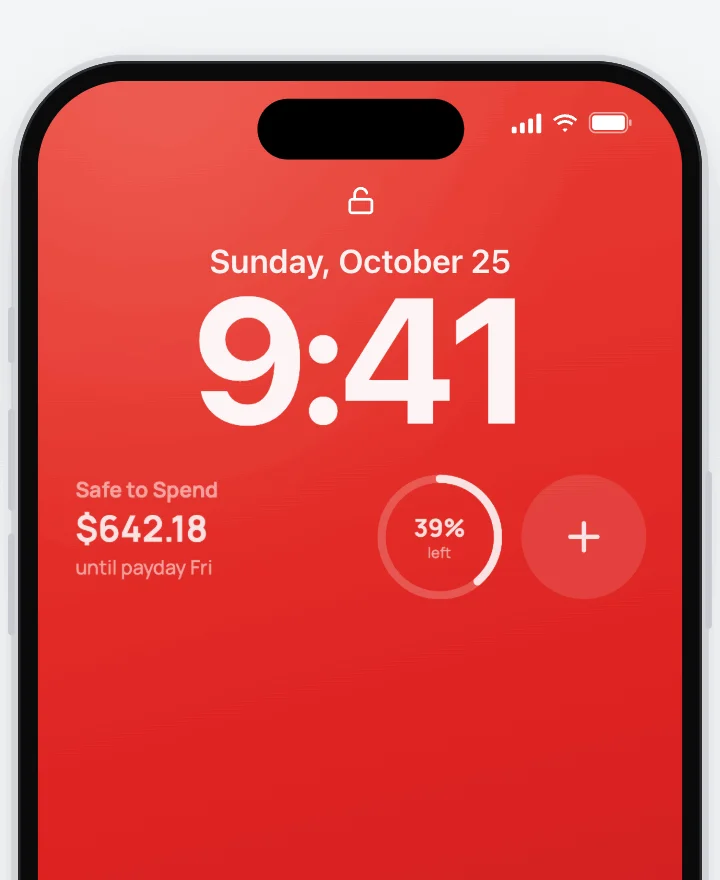
For the Lock Screen, touch and hold it, then choose Customize and Lock Screen. Safe to Spend, This Month, Category Breakdown, Goals and Quick Add fit there.
On Android
- 1.
Touch and hold an empty spot on your home screen.
- 2.
Choose Widgets and find Waypoint Budget.
- 3.
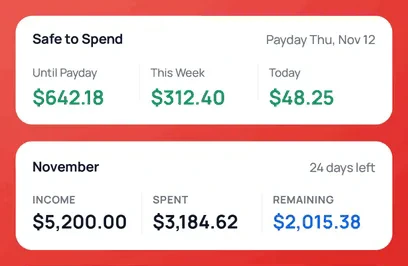
Drag Safe to Spend, This Month, Accounts or Quick Add onto your screen.
Accounts shows every account. To pick some, touch and hold it and choose the edit button.
Choose What a Widget Shows
On an iPhone, Category Breakdown, Goals and Accounts can show only the ones you pick. Touch and hold the widget, then choose Edit Widget.
Common Questions
Open the app once while you’re signed in, and your numbers fill in.
Every couple of hours on their own, but not overnight. Changes you make in the app show up within a minute.
Upcoming Charges needs Plus, and Net Worth needs Pro. Every other widget works on Free.
Read Next
Still stuck? Use the ? at the top of the app to ask the Waypoint Guide, or message us. A person from our team will get back to you.