Categorize Your Spending
Correct one transaction, and similar ones follow
Start with the ones marked Uncategorized, then fix any in the wrong category.
Find Uncategorized Transactions
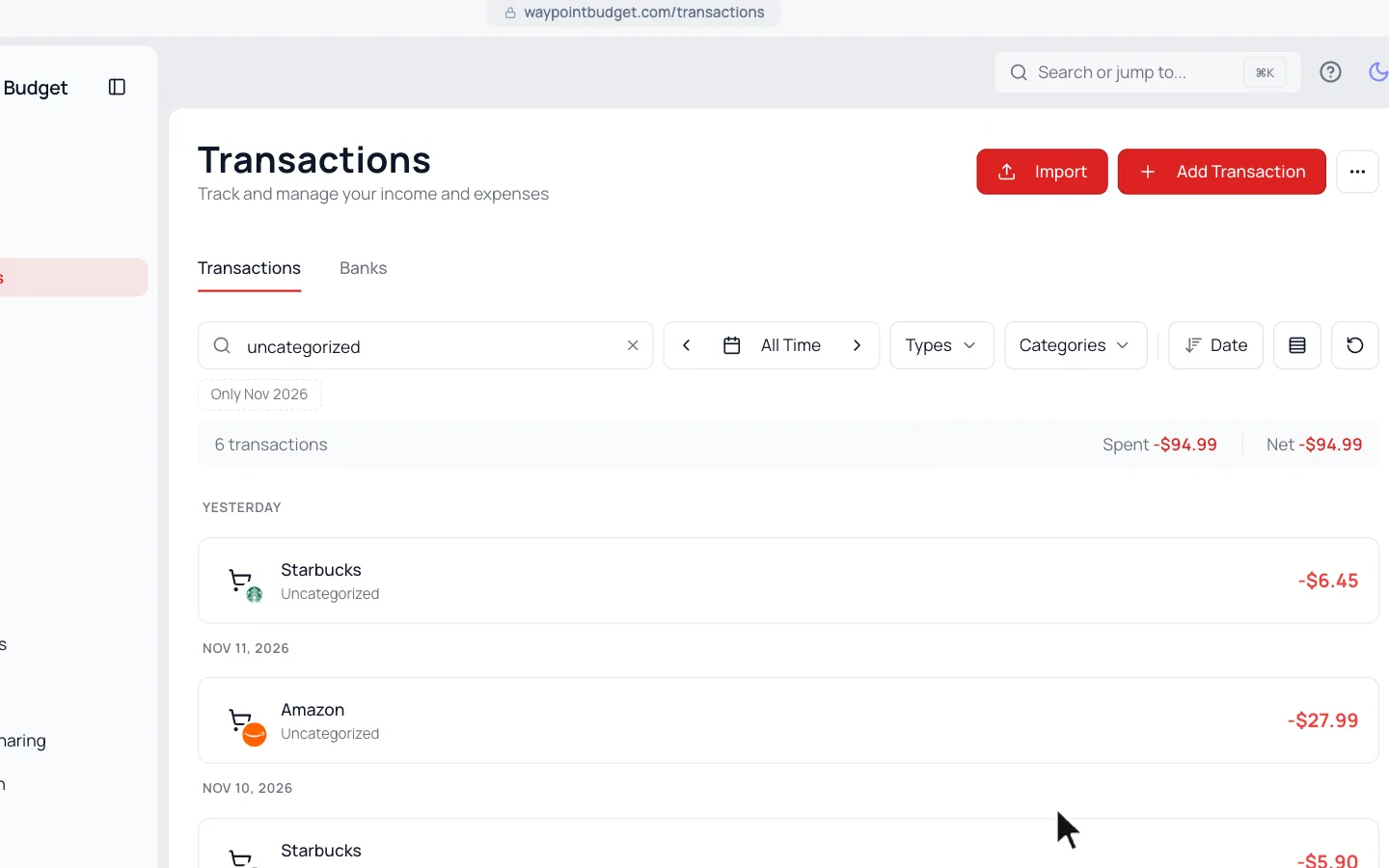
In your Dashboard’s setup checklist, click Categorize Your Spending. It opens the ones still marked Uncategorized. Or search for them:
- 1.
Go to Transactions.
- 2.
Type “uncategorized” in the search box.
- 3.
Click All Time to include past months.
Change a Transaction’s Category
- 1.
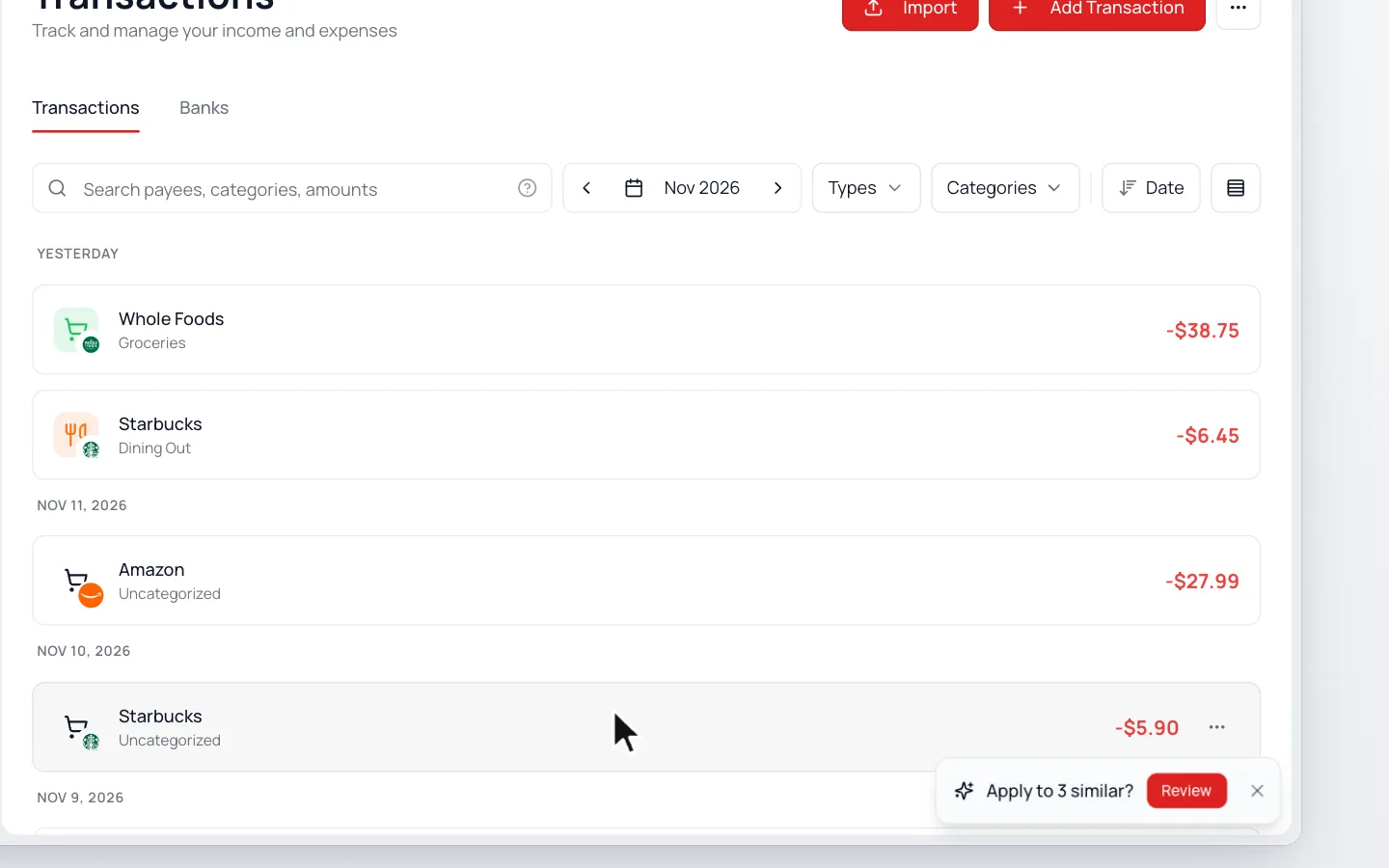
Click the transaction to open Edit Transaction.
- 2.
Pick the right category under Category. To see them all, click the magnifying glass.
- 3.
Click Update.
One purchase, a few categories? See Split a Transaction.
Apply to Similar Transactions
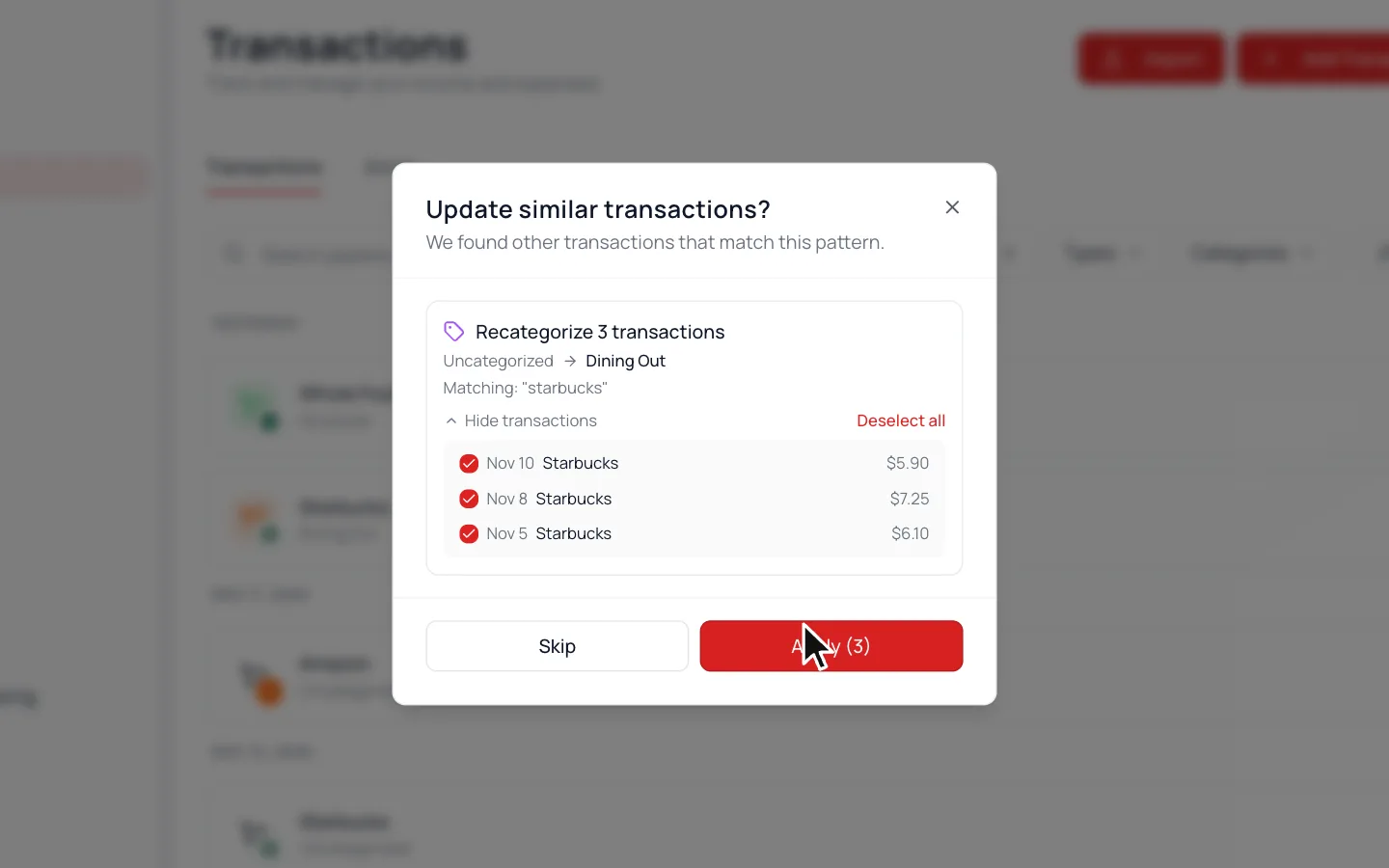
If others have a similar name, a prompt like Apply to 3 similar? pops up for 10 seconds.
- 1.
Click Review to open Update similar transactions?
- 2.
Click View transactions to see the list.
- 3.
Uncheck any you want to leave alone.
- 4.
Click Apply (3).
New transactions with that name will follow too. Skip leaves the others alone.
Saw “Rule learned”?
The app made a rule: new transactions with that name go to the same category. Click Undo to take the rule change back. This transaction keeps its new category. See all your rules in Categorization Rules.
Still stuck? Use the ? at the top of the app to ask the Waypoint Guide, or message us. A person from our team will get back to you.