Your Calendar
Paydays and expenses on the days they land, checked off once they’re paid
When does money come in, and when does it go out? Your Calendar shows your paydays and expenses on the days they land. Find it in the sidebar, or in the bottom bar on a phone.
What’s on Your Calendar
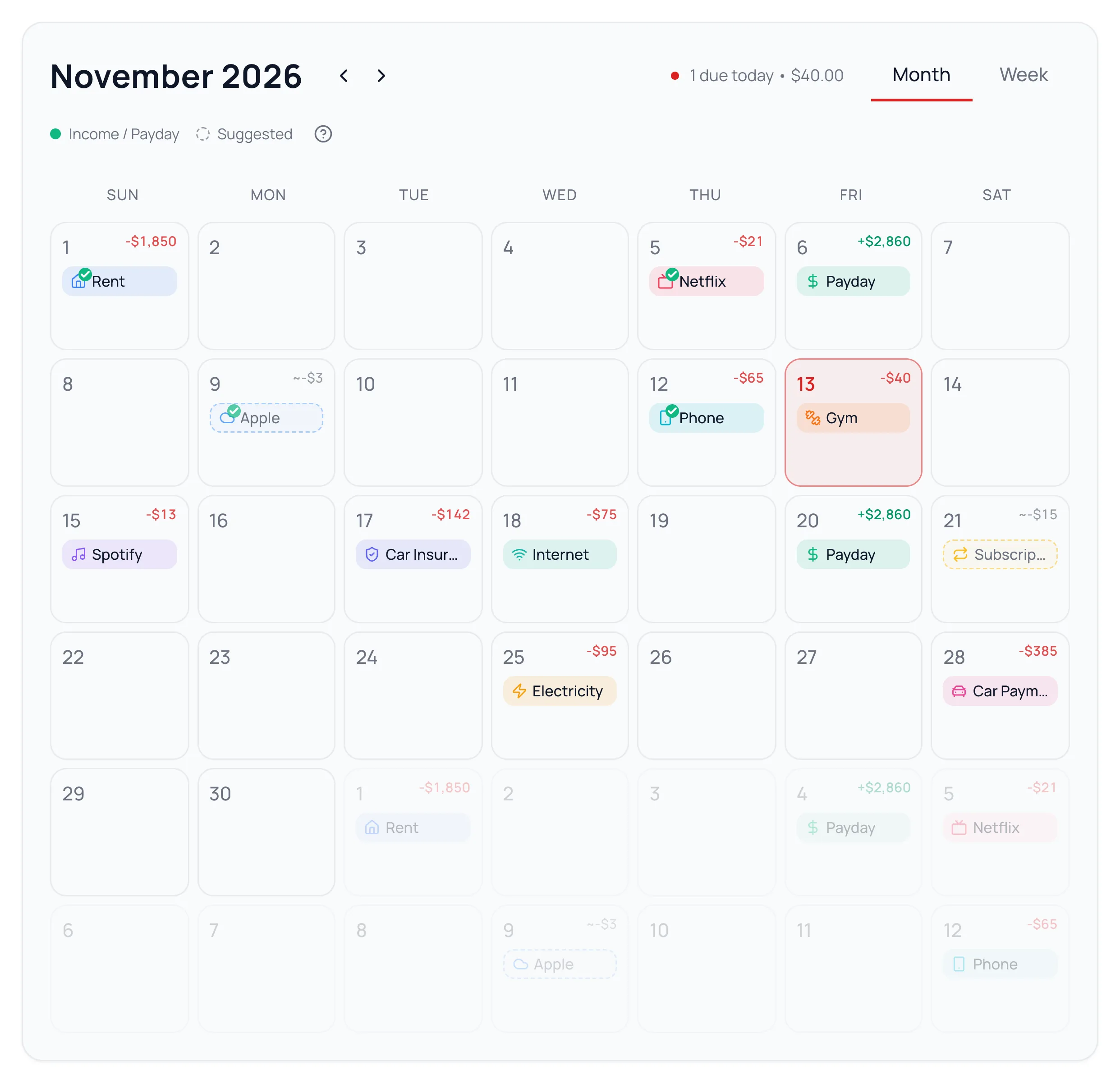
- Payday, in green, from your income.
- Expenses with a payment day, in their category’s color.
- A green check once a matching payment comes in.
- An amber date when a payment is past due and nothing matched.
- Dashed chips for repeat charges that aren’t on your budget yet.
Click a day to see what’s due and what’s paid. Next 7 Days lists the week ahead, and Week shows one week at a time.
Add Payment Days
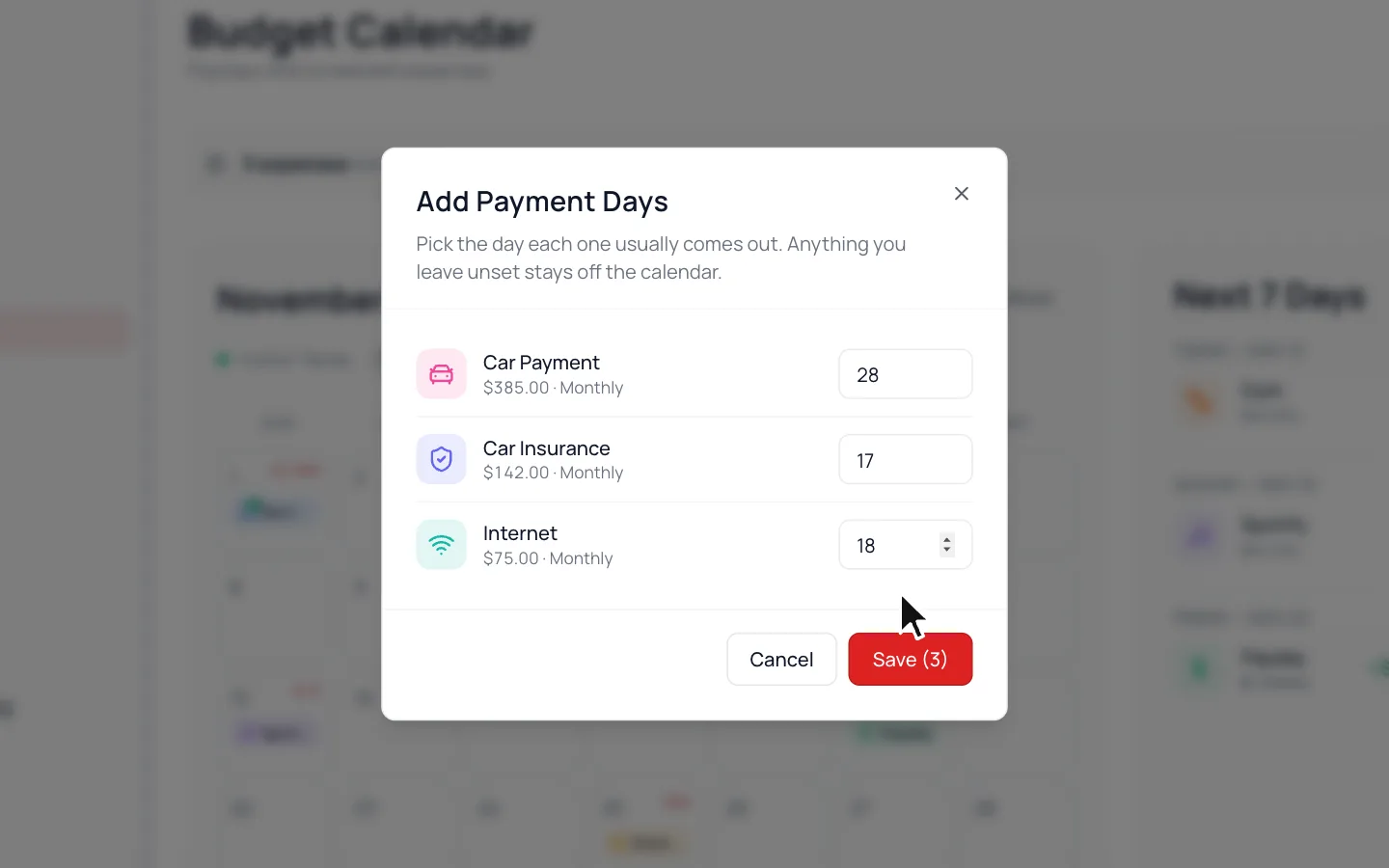
An expense shows up once its category has a payment day. Spending you spread across the month, like groceries, doesn’t need one.
When the Calendar says some expenses aren’t on it yet, click Set Days. Pick the day each one comes out, then click Save.
Or go to Budget, click the category, fill in Payment Day (Optional) on a monthly category without rollover and click Save Budget. A new category can get its day as you add it. See Build Your Budget.
Suggested Charges
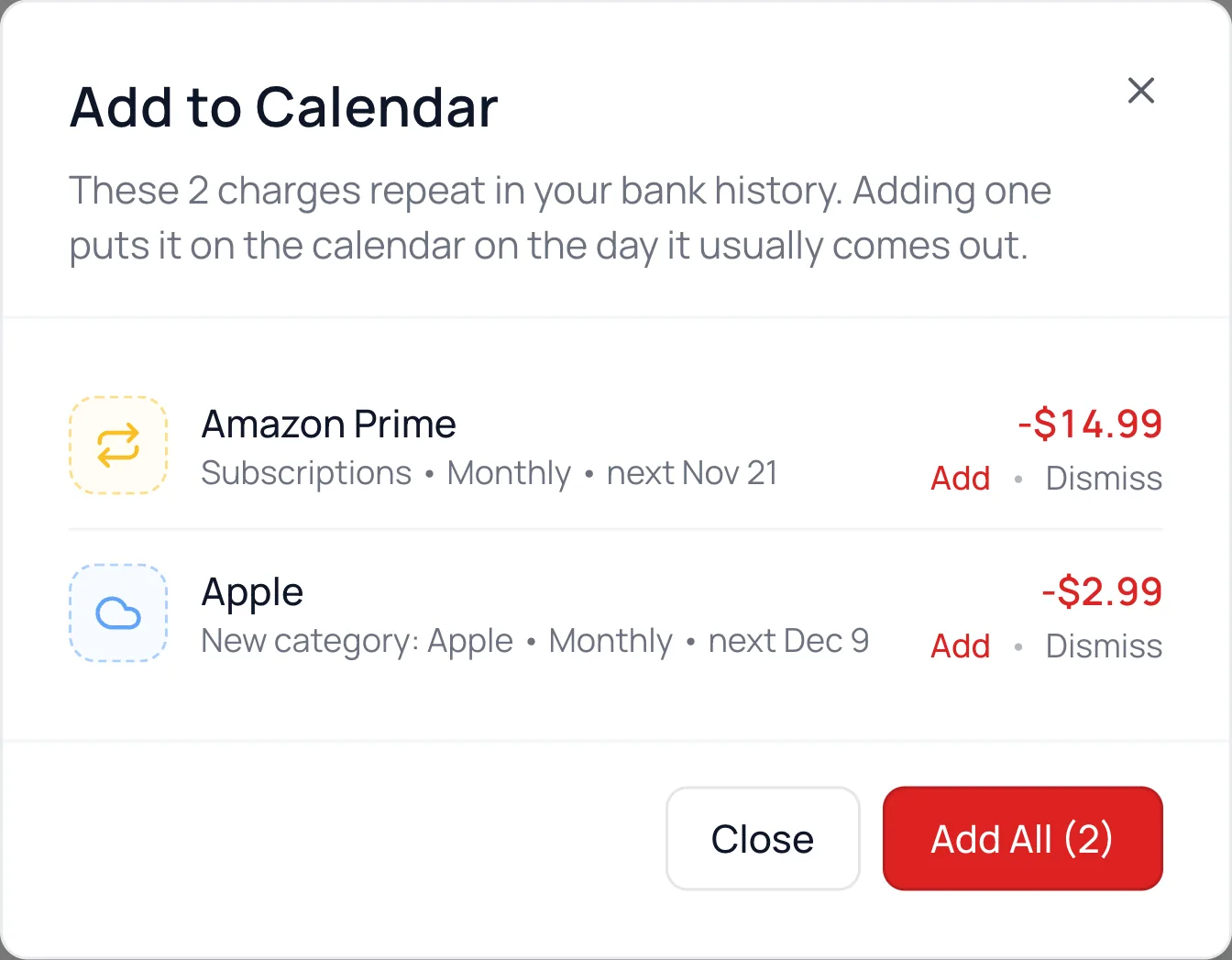
The Calendar spots charges that repeat, like a streaming plan, and pencils them in with a dashed outline. They stay out of the day’s total until you add them.
- 1.
Click Review on the note above the calendar.
- 2.
Click Add to put a charge on the day it usually comes out, and on your budget if it isn’t there yet. Add All adds every one.
- 3.
Click Dismiss to stop suggesting one.
Hid the note? Click a dashed charge’s day for Add to Calendar or Dismiss.
Common Questions
The Calendar shows categories with a payment day, not repeating expenses. Give the expense’s category a payment day, and it shows up.
It needs the same category, a date near the payment day, and an amount close to your budget. If the price changed, update the amount on Budget. If the day names a Closest payment, click that row, then the Paid by line under it.
A rollover category sets money aside on a deposit day. It isn’t an expense due on a date, so it stays off the Calendar.
Yes. Click the day, then the ⋯ beside Payday, and choose Skip This Paycheque, Move to Another Date or Change Amount for This One. Only that paycheque changes.
Read Next
Still stuck? Use the ? at the top of the app to ask the Waypoint Guide, or message us. A person from our team will get back to you.