Repeating Expenses
Add rent, subscriptions and other regular expenses once, and they fill in on their own
Typing in the same rent or Netflix charge every month? Set it up once, and it fills in on its date. Expenses your bank brings in don’t need this.
Make an Expense Repeat
- 1.
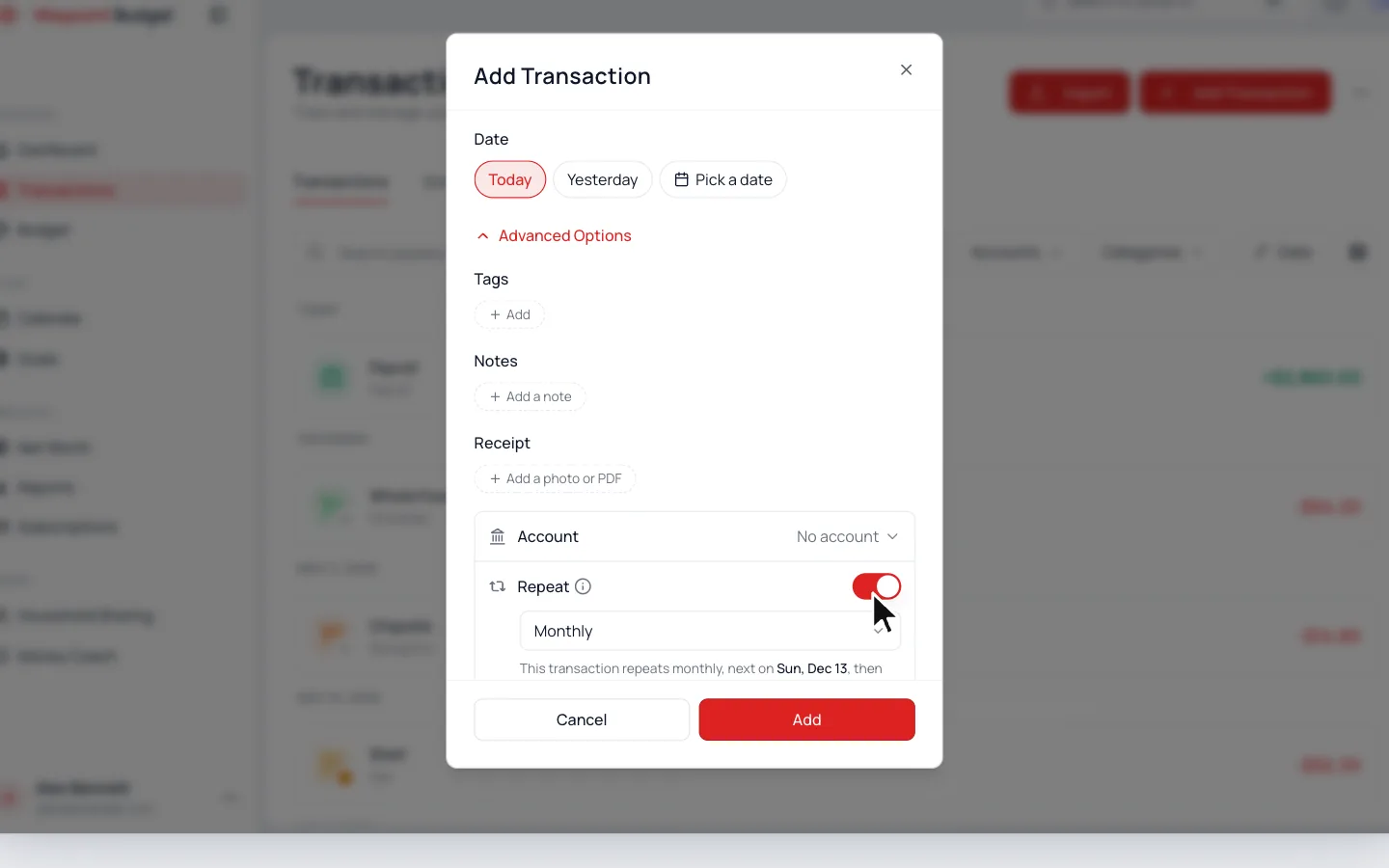
Go to Transactions and click Add Transaction.
- 2.
Fill in the amount, name and category.
- 3.
Open Advanced Options and turn on Repeat.
- 4.
Pick how often, then click Add.
It repeats on the same day as the one you saved, and each new entry arrives early that morning.
Change or Stop a Repeating Expense
- 1.
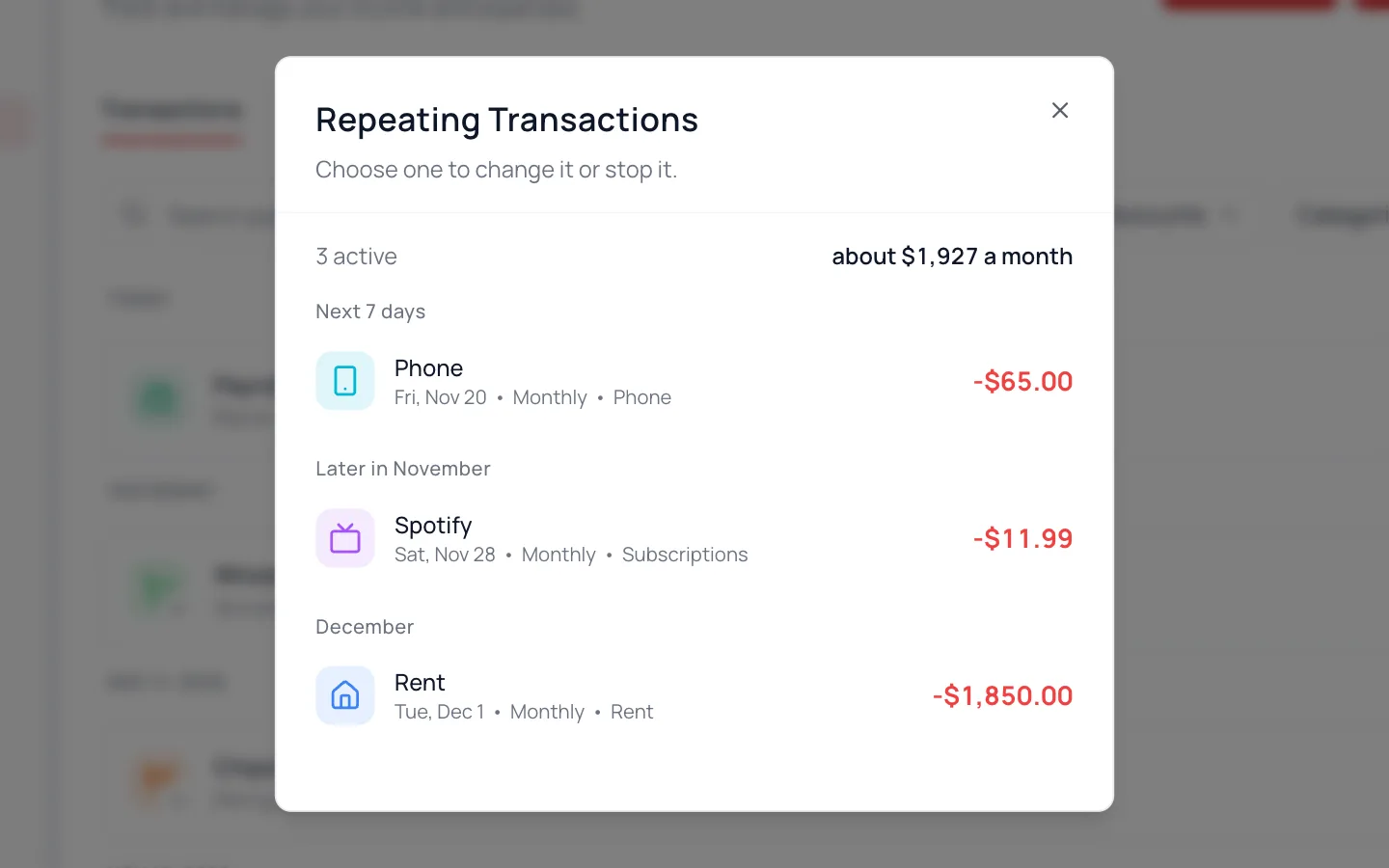
On Transactions, open the ⋯ menu and choose Repeating.
- 2.
Click the one you want.
- 3.
Change it and click Save, or click Stop Series.
Changes apply to new entries. Past ones stay as they are.
Due Dates on Your Calendar
Your Calendar shows each category’s payment day, and a green check once a matching expense comes in. Set the day with Payment Day (Optional) on the category. See Your Calendar.
Common Questions
Give each expense its own category, since a category has one payment day. Your total budget stays the same.
Pick Bi-monthly. Custom covers any other schedule, like every 3 weeks.
No, repeating expenses only go forward. For past months, import a file instead.
Read Next
Still stuck? Use the ? at the top of the app to ask the Waypoint Guide, or message us. A person from our team will get back to you.