Group Your Categories
Keep related categories together, with a subtotal for each group
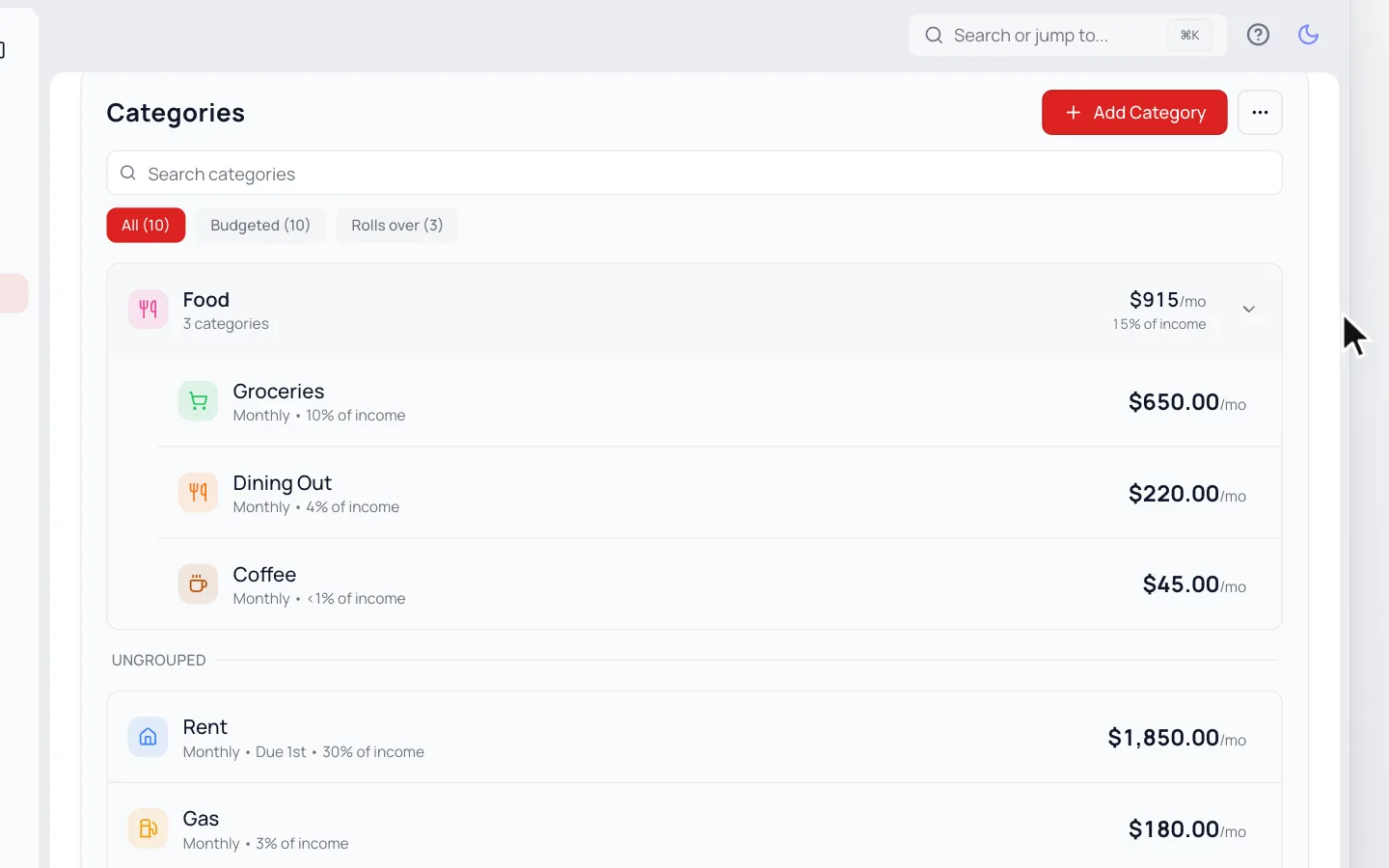
Like seeing Groceries, Dining Out and Coffee together under Food? Put them in a group. Each group shows its own subtotal.
Make a Group
- 1.
Go to Budget. On the Categories card, open the ⋯ menu beside Add Category and choose Organize.
- 2.
Click New Group, name it, then click Save Group.
- 3.
Drag categories into the group by their handle.
- 4.
Click Done.
Every move saves as you drop it. Drag a category back out the same way.
Give a Group One Budget
From the group’s ⋯ menu, choose Set a Group Budget. Its categories then share one amount, so spending more in one leaves less for the others. The shared amount replaces their own budgets, and a group with a rollover category can’t share one.
Common Questions
No, groups hold categories only. To keep fixed and flexible costs apart, drag those groups to the top or bottom in Organize.
Yes. Category Breakdown on your Dashboard follows the same order as your Budget page.
Read Next
Still stuck? Use the ? at the top of the app to ask the Waypoint Guide, or message us. A person from our team will get back to you.