Export or Delete Your Data
Download your budget and transactions as a spreadsheet, or delete your account for good
Want your numbers in a spreadsheet, or ready to leave? Export a copy first, since deleting your account can’t be undone.
Export Your Data
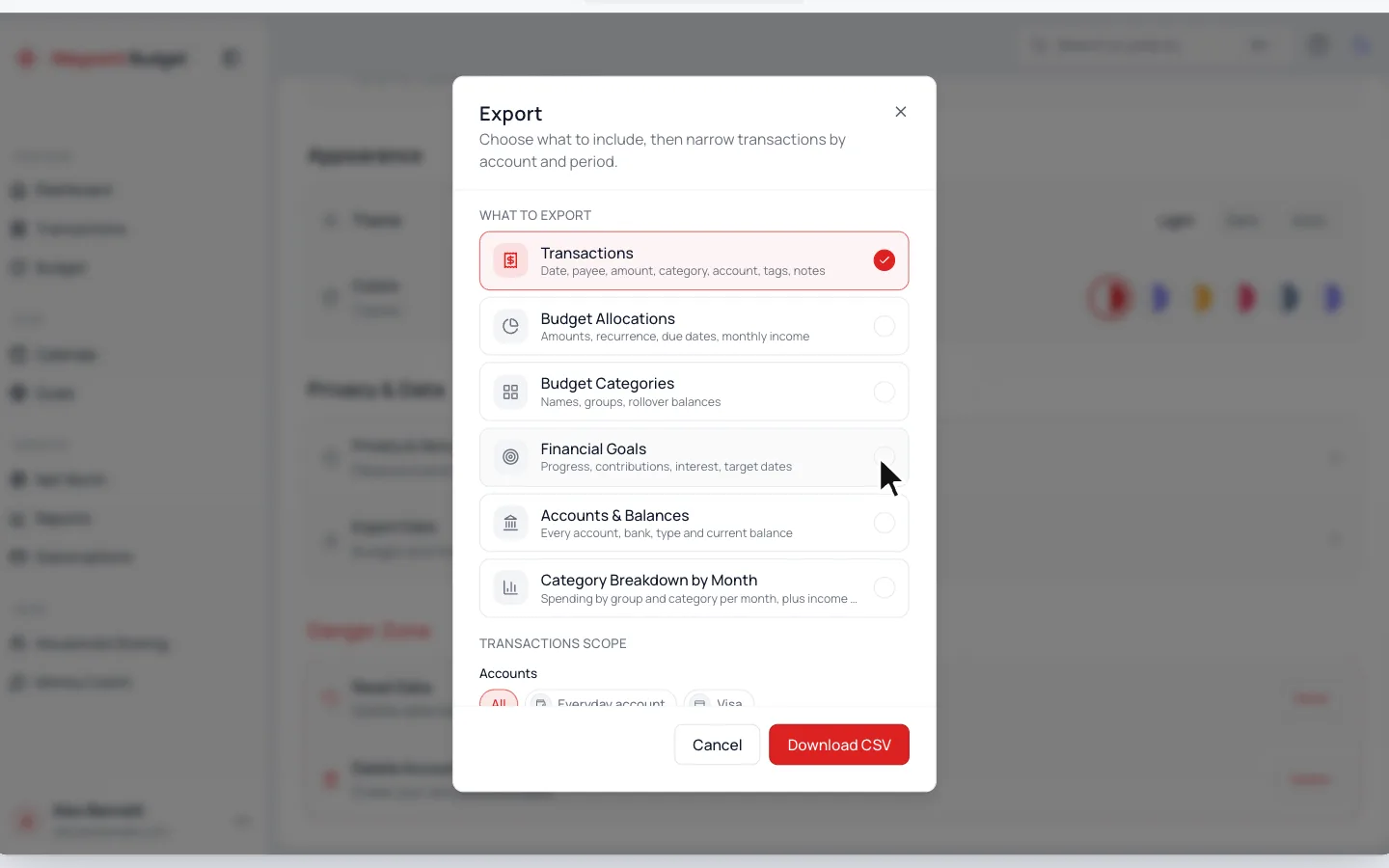
- 1.
In Settings, scroll to Privacy & Data and open Export Data.
- 2.
Choose what to include, like Transactions or Budget Categories.
- 3.
To narrow your transactions, pick accounts or a Period.
- 4.
Click Download CSV (or Download ZIP for several files).
In the iPhone or Android app, your browser opens to finish the download.
Delete Your Account
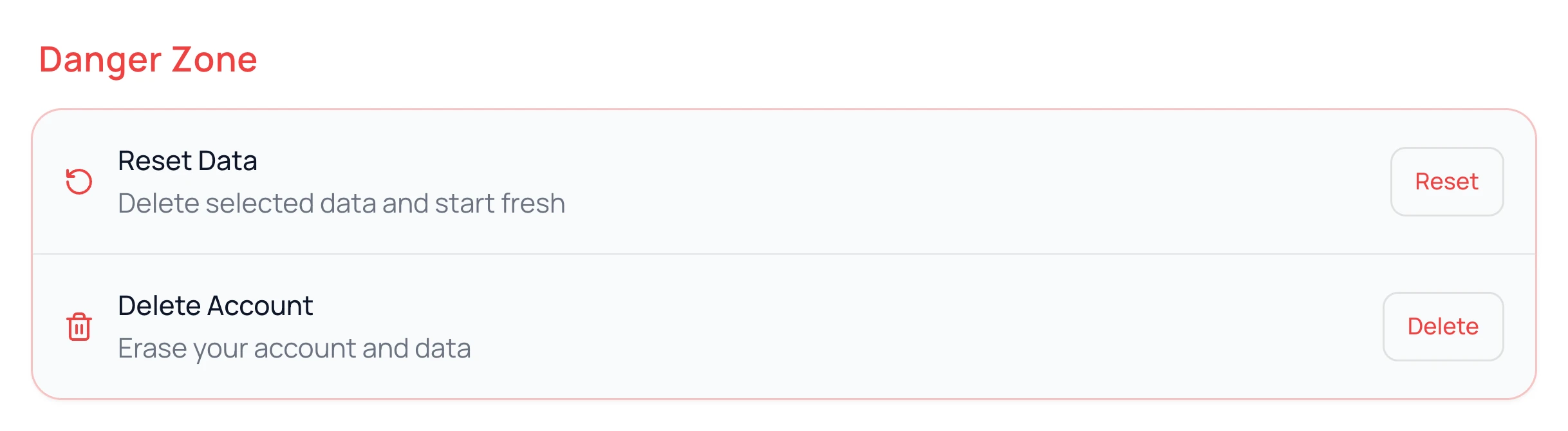
- 1.
In Settings, scroll to Danger Zone at the bottom.
- 2.
Click Delete next to Delete Account.
- 3.
Click Delete Account to confirm, and verify it’s you if asked.
This erases your budgets, transactions and goals, disconnects your banks, and cancels your plan.
Subscribed Through the App Store?
Apple handles that plan, so deleting your account doesn’t cancel it. Cancel it first, as Plans, Free Trial and Cancelling shows.
Only want a fresh start? Reset Data clears what you choose and keeps your account.
Common Questions
Yes, on every plan. Only Category Breakdown by Month needs Plus or Pro.
Yes, on a computer: Export in the ⋯ menu starts with the dates and accounts you’re viewing.
If you own it, it’s deleted for everyone in it. If you joined someone else’s, it stays, without your banks and their transactions.
Still stuck? Use the ? at the top of the app to ask the Waypoint Guide, or message us. A person from our team will get back to you.