HelpGoals, Net Worth and Reports
Subscriptions
See every subscription in one place, what they cost you, and which ones renew soon
Ever wonder what all those monthly charges add up to? Subscriptions finds them in your transactions and shows what they cost you.
What You’ll See
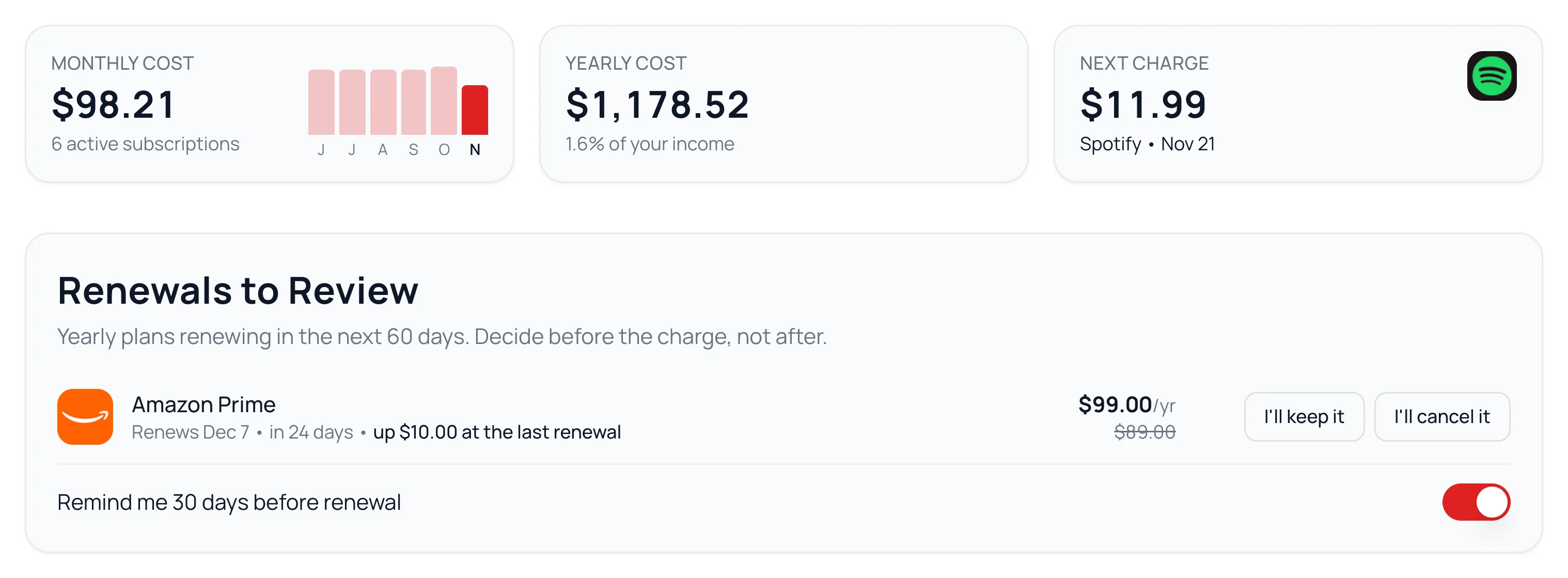
Open Subscriptions from the sidebar, or from More on a phone.
- Monthly Cost, Yearly Cost and Next Charge, with bars for the last six months.
- Renewals to Review: yearly plans renewing in the next 60 days, with a reminder 30 days before. Tell it I’ll keep it or I’ll cancel it.
- Upcoming Charges: everything due in the next 30 days, on a calendar.
- Tracked Subscriptions: what each one costs a month, and when it charges next.
- Looks Recurring: repeat charges it isn’t sure about yet.
- Spending Groups: what each kind of subscription costs you a month.
How It Finds Them
It reads up to a year of your transactions for the same company charging about the same amount on a steady schedule. Most show up after two charges, and well-known ones like Netflix after one.
Electricity, water, mortgage payments and donations are left out on purpose.
When a Price Goes Up
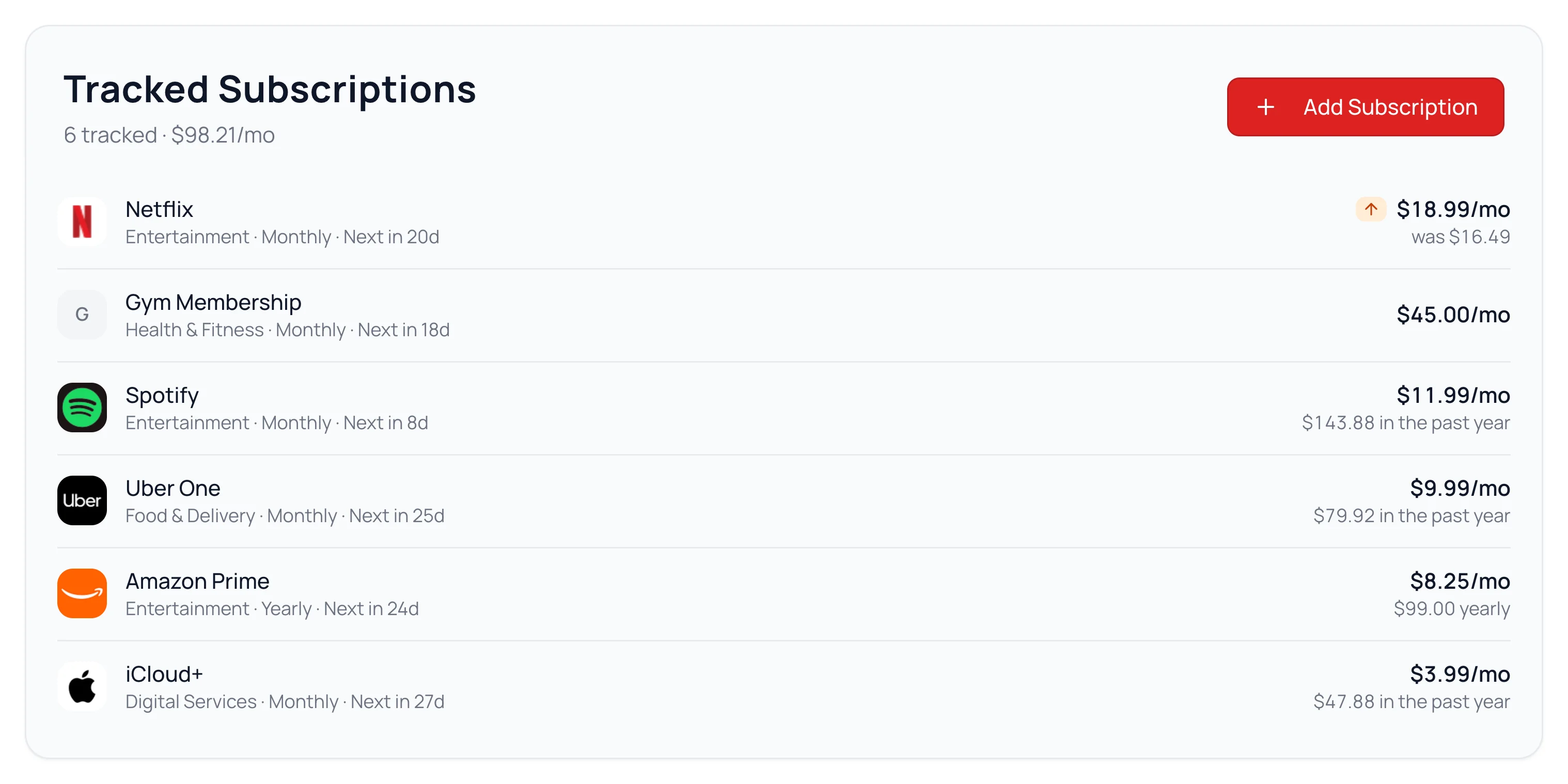
An orange up arrow beside a monthly price means it went up, with the old price underneath. It shows once the new price has charged twice, sorts that plan to the top, and stays about two months.
Track or Dismiss What It Finds
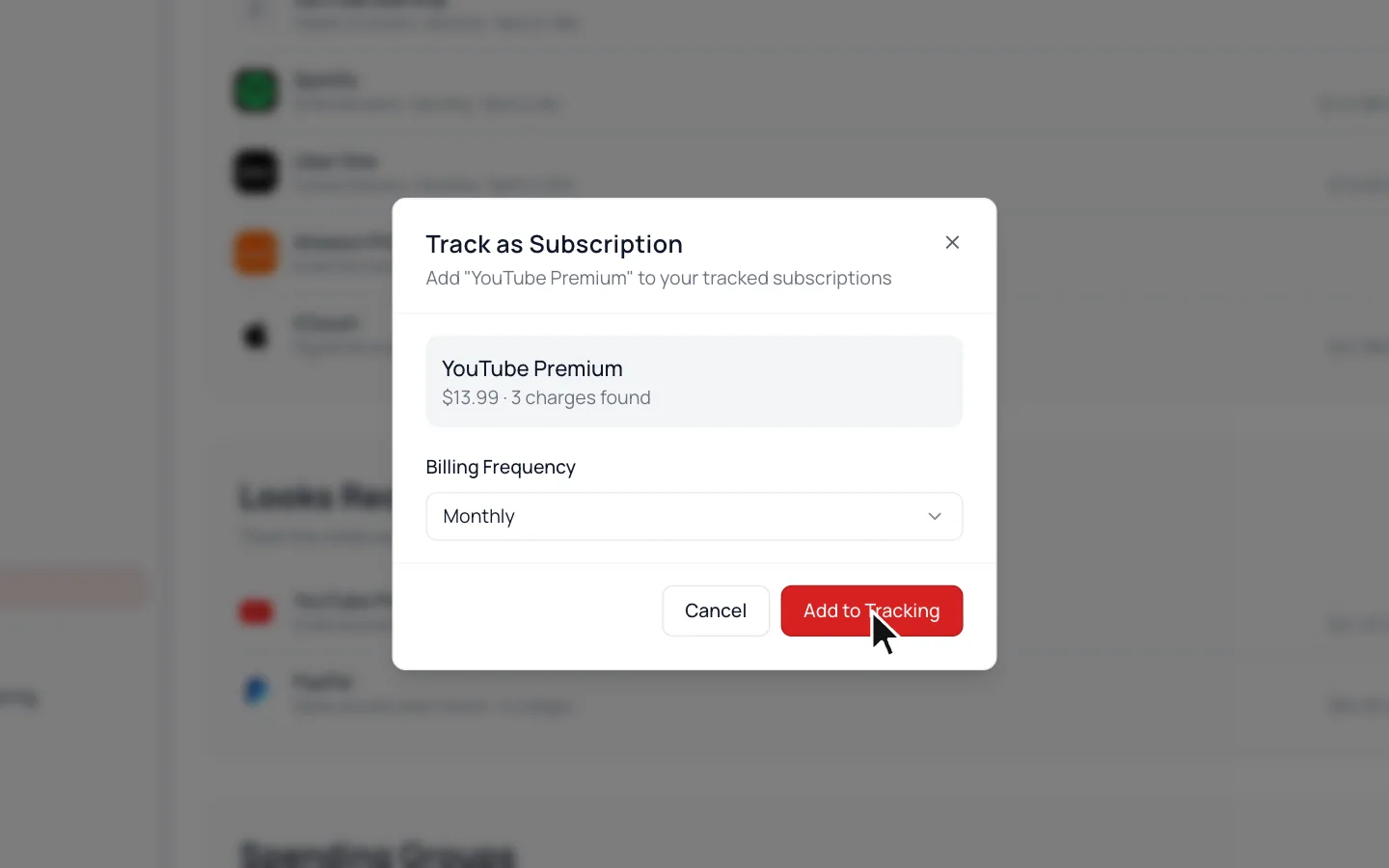
- 1.
Under Looks Recurring, hover the charge and click its ⋯.
- 2.
Choose Track. Not a subscription? Choose Dismiss instead.
- 3.
Check the Billing Frequency, then click Add to Tracking.
Common Questions
Choose Stop Tracking from its ⋯ menu (on a phone, from its history), then Hide. To bring it back, click dismissed under Looks Recurring, then Unhide. One you added yourself is deleted.
Yes. Click Add Subscription (Add on a phone), then fill in its name, amount and how often it charges.
Yes. Choose Edit from its ⋯ menu, or from its history on a phone, and change the Display Name, Billing Frequency or Spending Group.
No. Cancel it with the company before it renews. Until then it stays on Renewals to Review as a reminder.
Yes. Open one of its charges on Transactions (Activity on a phone) and click Change at the end of its Description.
Yes. Click Customize on your Dashboard (the sliders icon on a phone), then Add cards, and add Upcoming Subscriptions.
Read Next
Still stuck? Use the ? at the top of the app to ask the Waypoint Guide, or message us. A person from our team will get back to you.