Split a Transaction
Spread one purchase across several categories
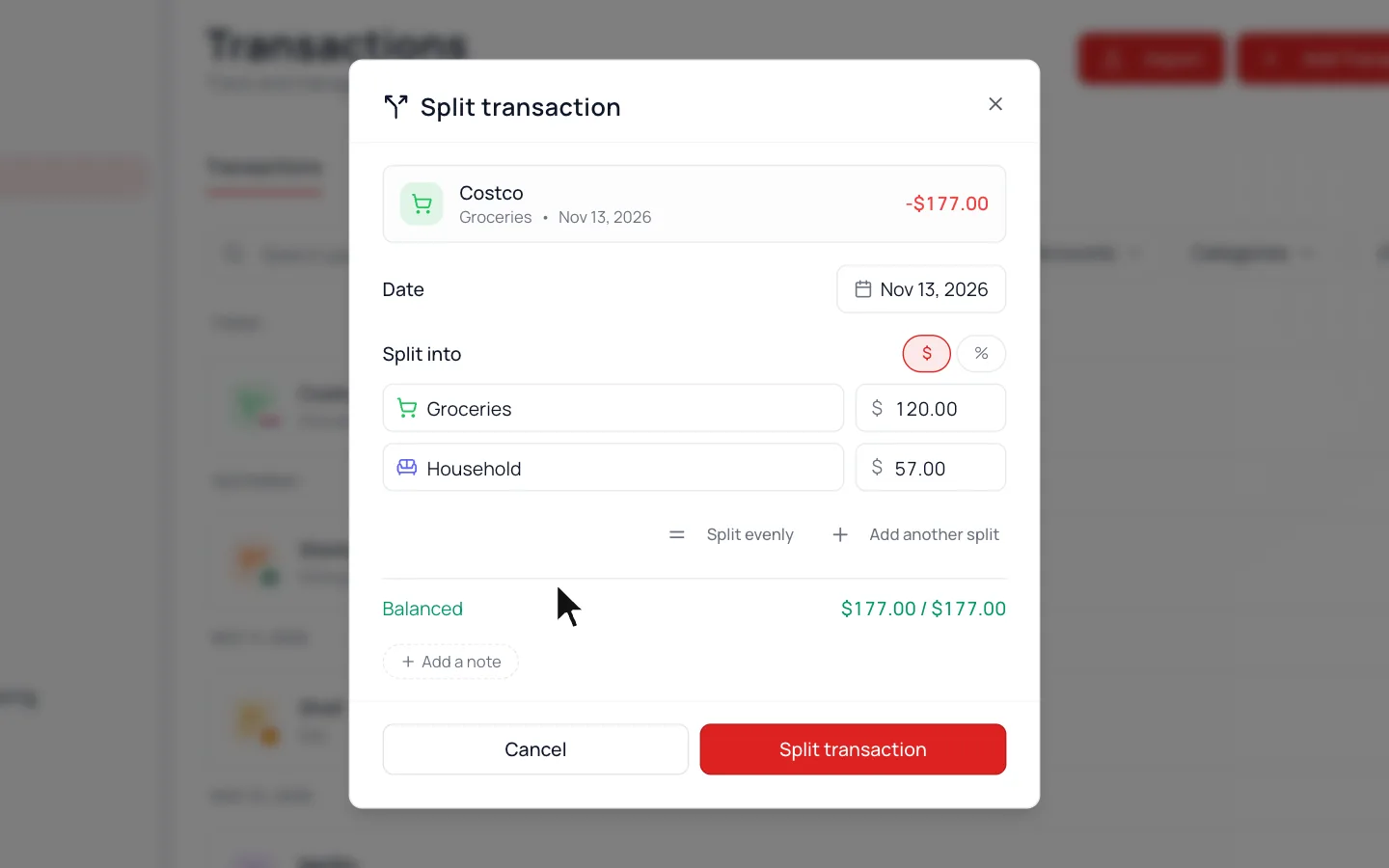
One receipt, a few categories? Split it, like a $177 Costco trip that’s $120 of groceries and $57 for the house.
Split One You Already Have
- 1.
On Transactions, hover the transaction and click the ⋯ at the right end of its row.
- 2.
Choose Split.
- 3.
Give each part a category and amount. Use Add another split for more.
- 4.
Click Split Transaction.
Don’t See Split?
Open the transaction from Transactions (Activity on a phone). On a tablet, open the transaction and use Split next to Update.
Split While You Add It
- 1.
On Transactions, click Add Transaction.
- 2.
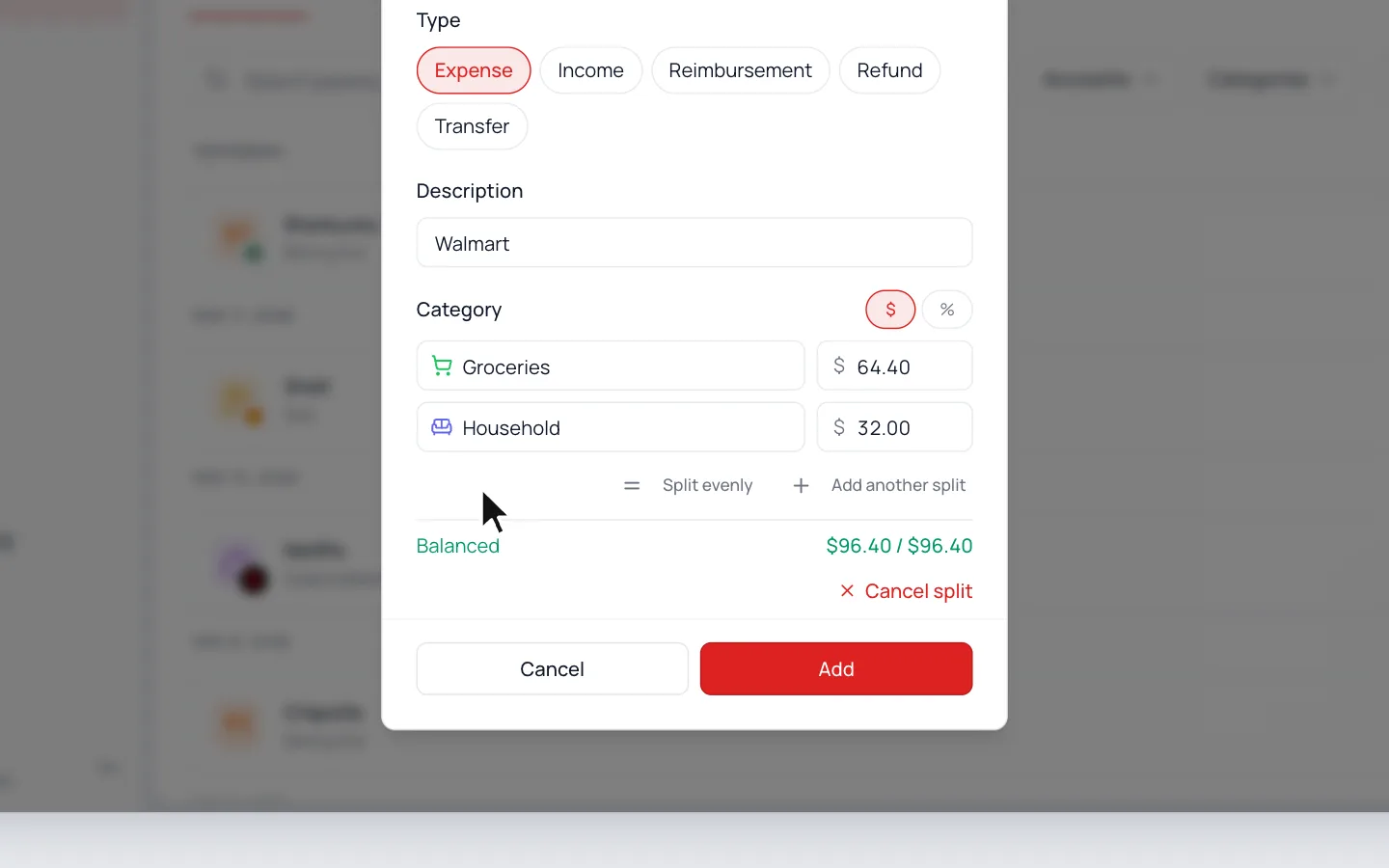
Click the dashed Split chip at the end of the categories.
- 3.
Give each row a category and amount, then click Add.
Split It Every Time
Same split every month, like home and car insurance in one charge? A rule can do it for you. See Categorization Rules.
Common Questions
Click the split transaction, then choose Edit split to change the parts, or Unsplit to put it back together.
Still stuck? Use the ? at the top of the app to ask the Waypoint Guide, or message us. A person from our team will get back to you.