Add an Account by Hand
Track an account’s balance yourself, with no bank login
Bank not connected, or on the Free plan? Add your accounts by hand and keep their balances yourself.
Add an Account
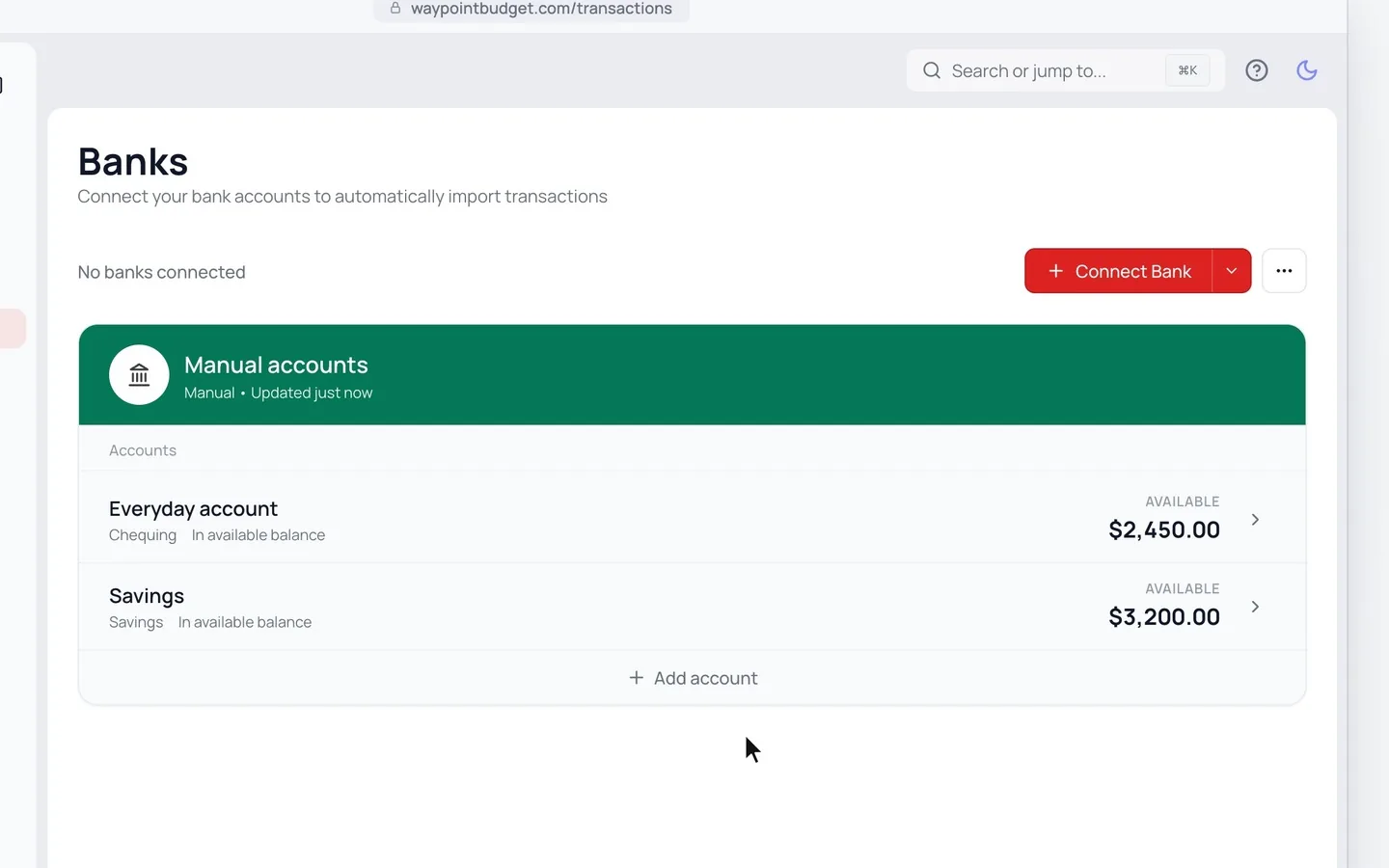
- 1.
Go to Banks.
- 2.
Click the arrow beside Connect Bank, then Add Manually.
- 3.
Pick the account type, name it and enter its balance.
- 4.
Click Add Account.
Update the Balance
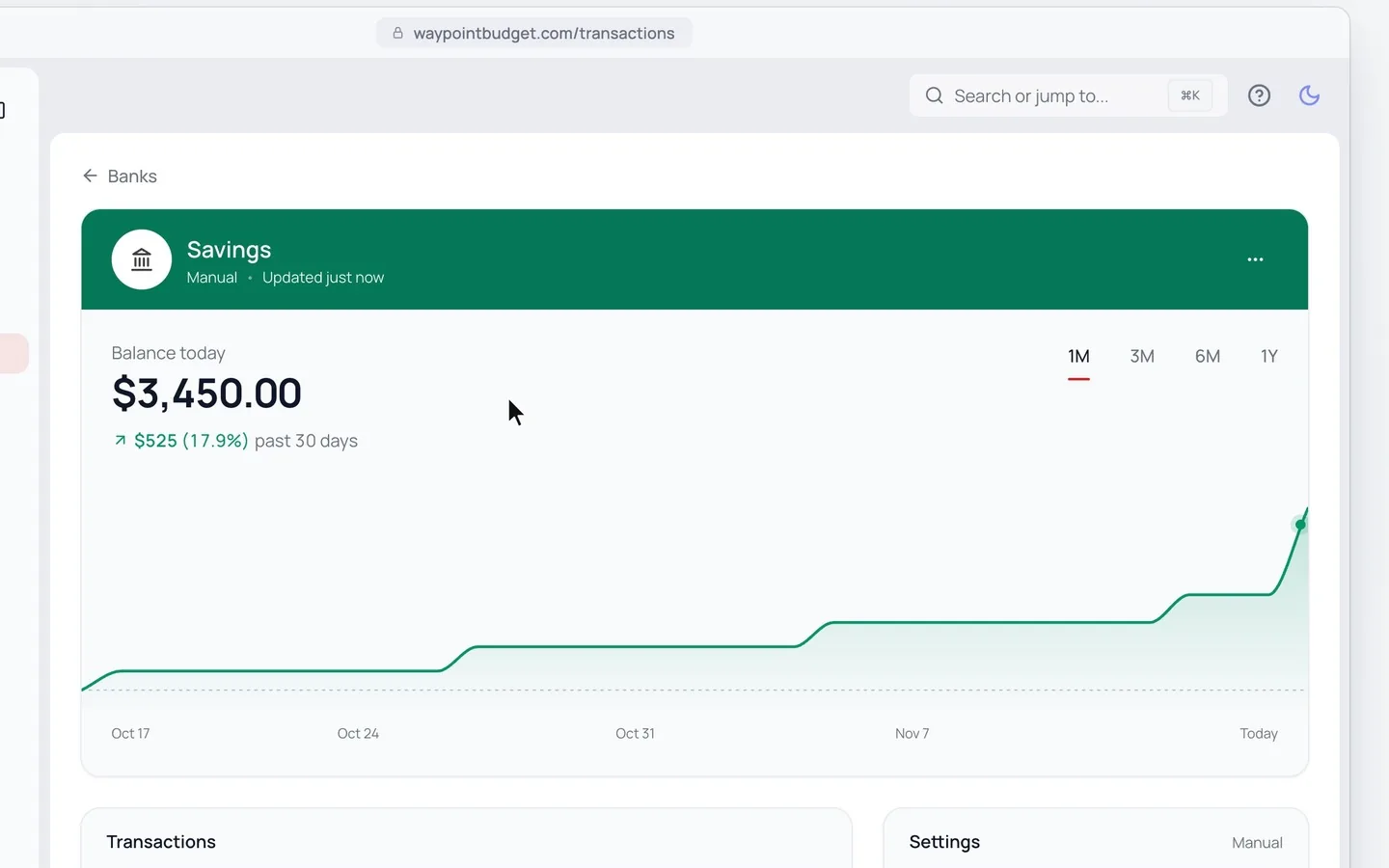
- 1.
On the Banks page, click the account, then ⋯ and Update Balance.
- 2.
Type today’s bank balance and click Save.
Use Today’s Balance
Use what your bank shows right now, not a past statement. After importing a file, set it again, since imports move it.
Add Transactions to It
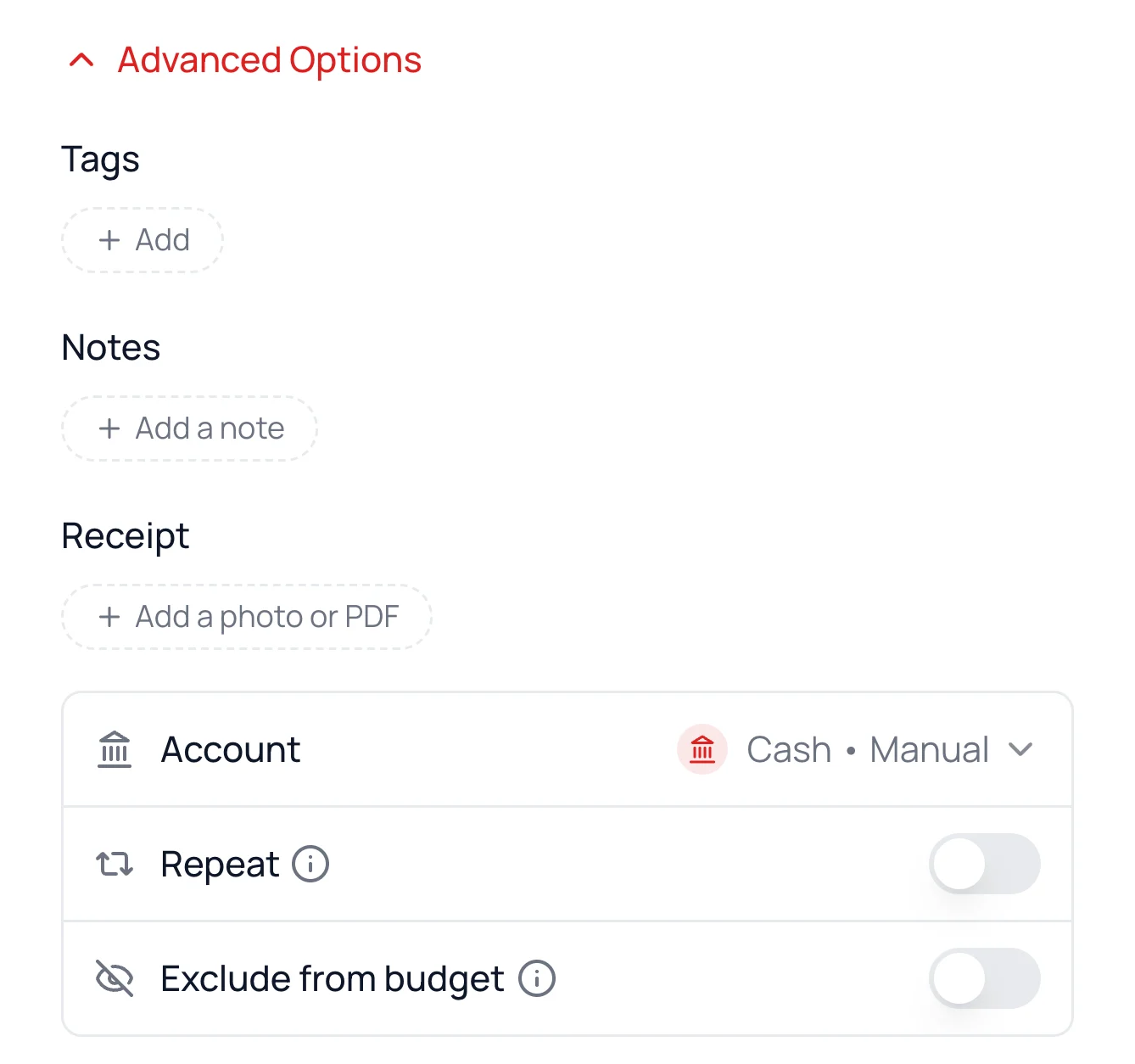
- 1.
On Transactions, click Add Transaction.
- 2.
Open Advanced Options and pick the account under Account.
Transactions you add move the balance between updates. On investment accounts, only transfers do.
Edit or Remove It
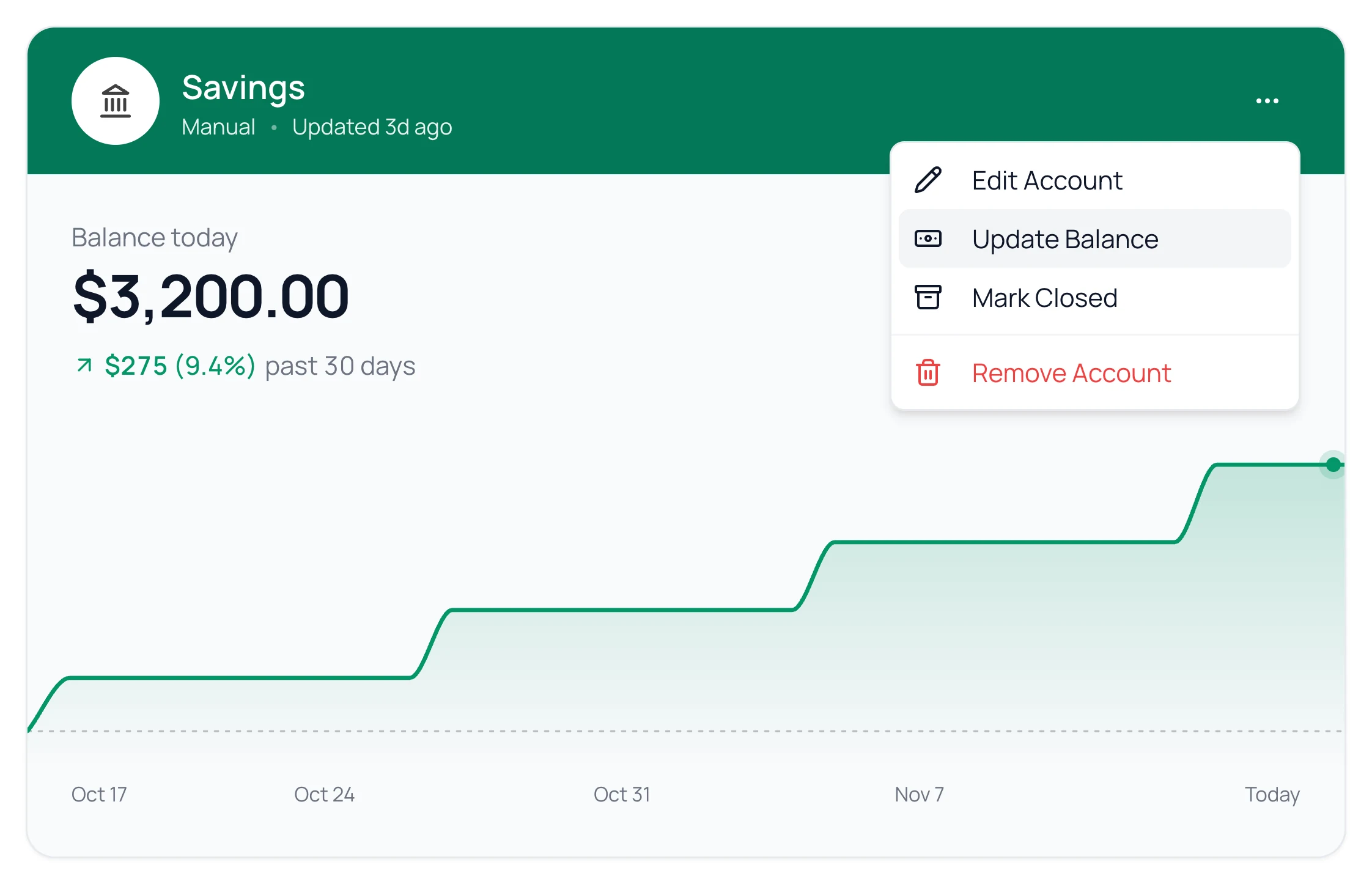
- 1.
On the Banks page, click the account, then ⋯.
- 2.
Choose Edit Account to change it, or Remove Account to delete it.
Its transactions stay either way. Mark Closed keeps its history but takes it out of pickers and net worth.
Common Questions
No. Only banks you connect count toward your plan.
The two usually merge on their own, history included. Merged into a connected bank on the Banks page has Undo.
Yes. On the import screen, pick it under Add to Account.
Read Next
Still stuck? Use the ? at the top of the app to ask the Waypoint Guide, or message us. A person from our team will get back to you.