Categorization Rules
Send a merchant to the same category every time, and fix past transactions while you’re at it
Want every Netflix charge under Subscriptions, every time? That’s a rule. You may have some already, since fixing a category often saves one for you.
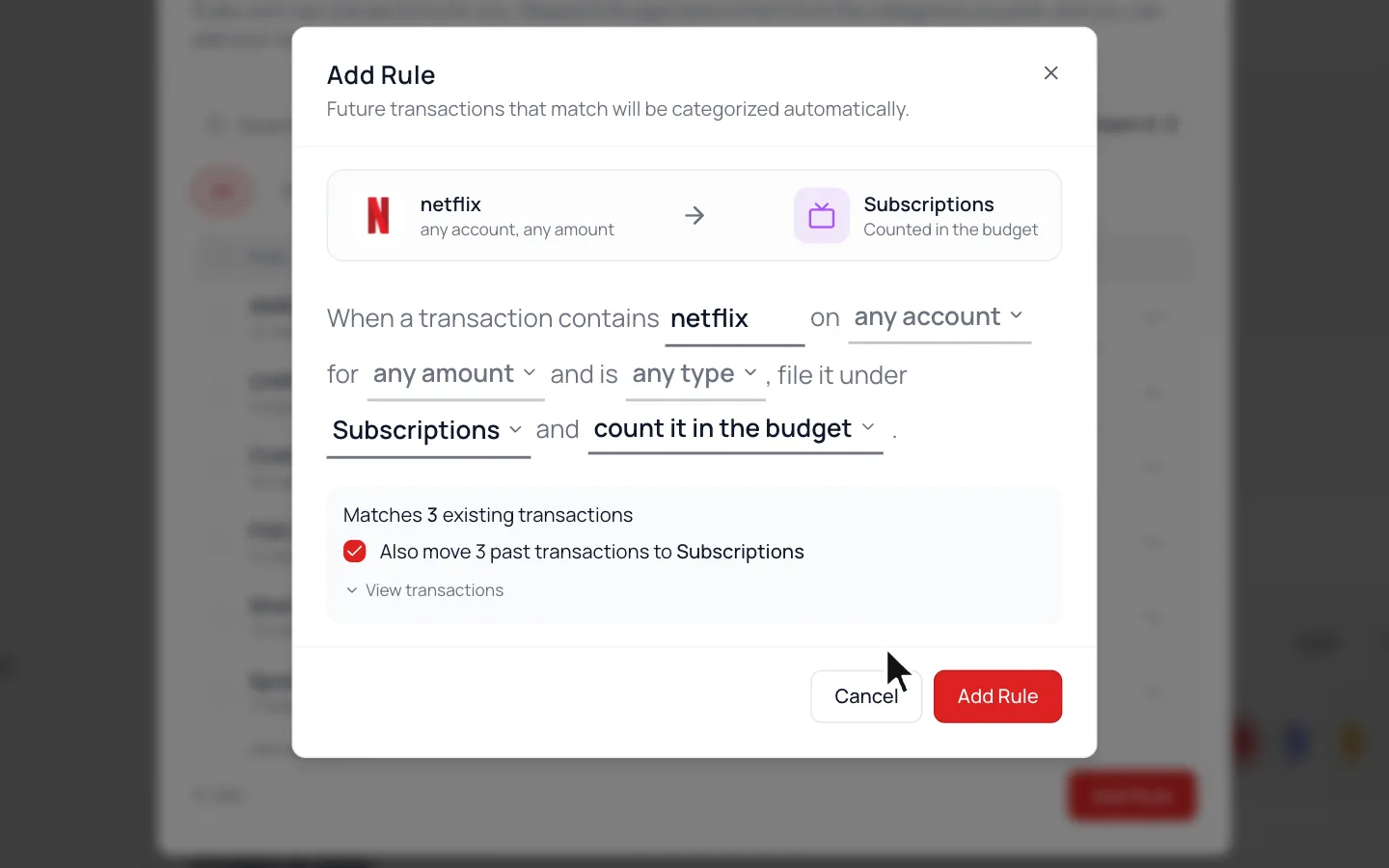
Add a Rule
- 1.
In Settings, scroll to Transactions and open Categorization Rules.
- 2.
Click Add Rule.
- 3.
Type part of the merchant’s name, at least 3 letters.
- 4.
Click a category and pick where it goes.
- 5.
To fix past transactions too, check the Also move box under the matches.
- 6.
Click Add Rule.
Without that box, a rule only sorts new transactions as they come in. Moved past ones by mistake? The message after saving has Undo, which moves them back.
Split a Shared Expense Every Time
Pay two things in one charge, or share a card? In the rule, choose Count part of it, type the percent that counts, and pick where the rest goes.
Pause or Delete a Rule
If a transaction keeps landing in the wrong category, a rule is usually behind it.
- 1.
On Categorization Rules, open the rule’s ⋯ menu.
- 2.
Choose Pause to keep it for later, or Delete.
Common Questions
Only if everything you buy there belongs in one category. A rule sends every charge from that store to the same place.
Yes. Imported and synced transactions both go through your rules.
Still stuck? Use the ? at the top of the app to ask the Waypoint Guide, or message us. A person from our team will get back to you.