Customize Your Dashboard
Choose which cards your Dashboard shows, and in what order
Want the numbers you check most at the top? Add the cards you use, move them, and remove the rest.
Add, Move or Remove Cards
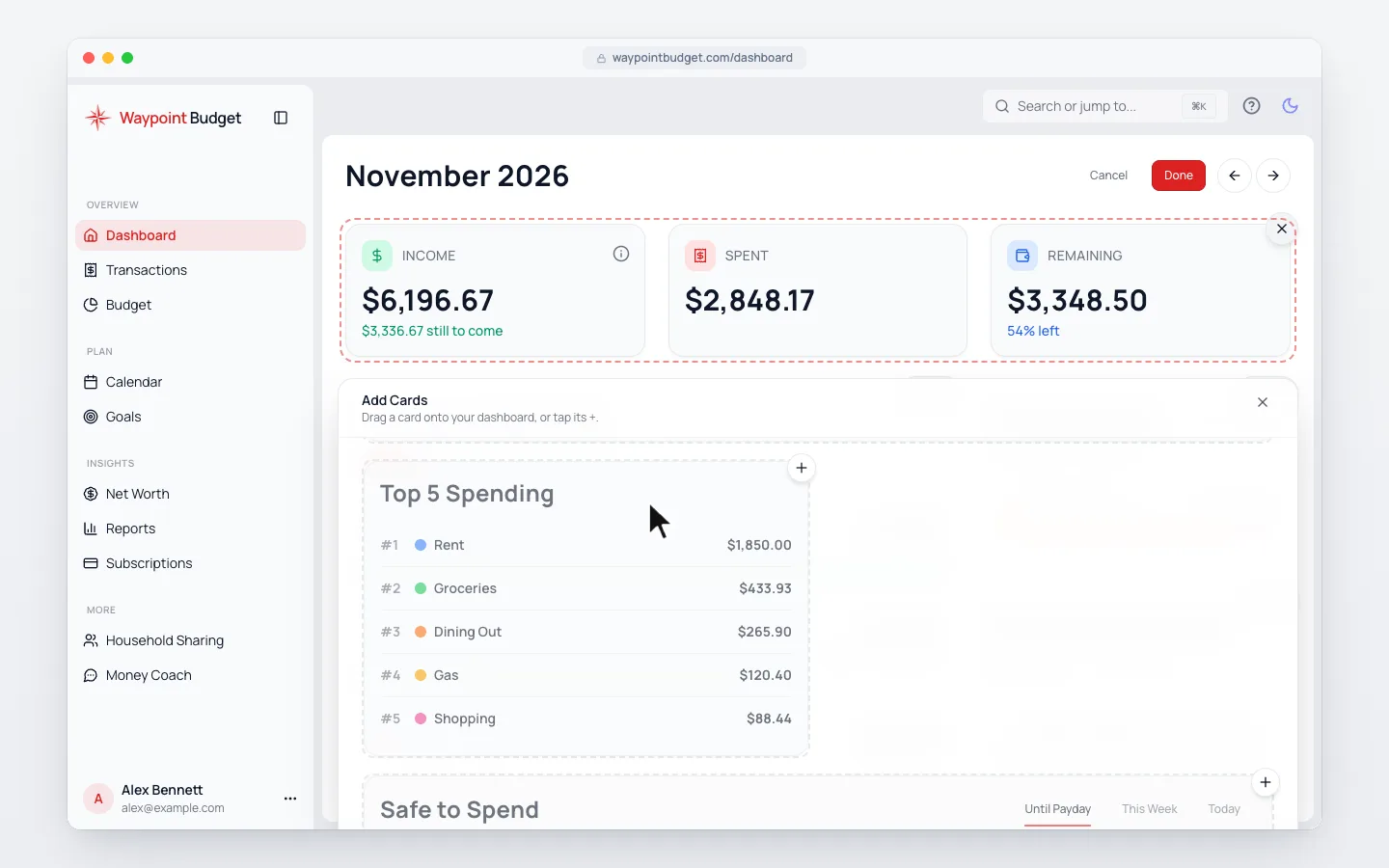
- 1.
Click Customize at the top of your Dashboard.
- 2.
To add a card, click Add cards at the bottom, then its +. Or drag the card where you want it.
- 3.
To move a card, drag it to a new spot.
- 4.
To remove one, click the × on its corner. It goes back to Add cards.
- 5.
Click Done to save.
Cards you can add include Safe to Spend, Goal Progress, Needs Review and Top 5 Spending.
Common Questions
Click Cancel instead of Done to keep your Dashboard as it was. Reset, then Done, goes back to the default layout. On a phone, Reset is the circular arrow beside Add cards.
Yes. It’s saved with your budget, so every device shows the same cards in the same order. Each budget keeps its own layout.
A lock means it needs a higher plan, shown on the card. Others say what they need first, like an account for Safe to Spend.
On a computer, yes. Use the width button beside a card’s ×, or drag it onto the right half of a wide card.
Read Next
Still stuck? Use the ? at the top of the app to ask the Waypoint Guide, or message us. A person from our team will get back to you.